Read our blogs, tips and tutorials
Try our exercises or test your skills
Watch our tutorial videos
Take a self-paced course
Read our recent newsletters
License our courseware
Book expert consultancy
Buy our publications
Get help in using our site
395 attributed reviews in the last 3 years
Refreshingly small course sizes
Outstandingly good courseware
Whizzy online classrooms
Wise Owl trainers only (no freelancers)
Almost no cancellations
We have genuine integrity
We invoice after training
Review 30+ years of Wise Owl
View our top 100 clients
Search our website
We also send out useful tips in a monthly email newsletter ...

| Software ==> | Visual Basic (46 exercises) |
| Topic ==> | Creating classes (4 exercises) |
| Level ==> | Average difficulty |
| Subject ==> | Visual Basic training |
This exercise is provided to allow potential course delegates to choose the correct Wise Owl Microsoft training course, and may not be reproduced in whole or in part in any format without the prior written consent of Wise Owl.
Right-click on your project in Solution Explorer and choose to add the form from the above folder (you can alternatively press SHIFT + ALT + A ).
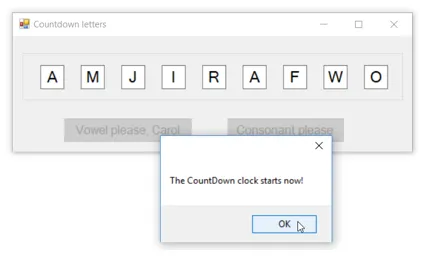
The idea behind this exercise is that you should be able to choose your Countdown letters by clicking on the vowel and consonant buttons as required:

This is the sort of thing you should see when everything's working (this one's a bit easy - there's an obvious 9-letter word in FWORJAAMI).
Lots of help now follows, but before turning the page, have a think about how you might design a Letter class to hold each letter chosen.
Every time you click on one of the two buttons, your code should generate a new letter of the appropriate type (vowel or consonant) and add this as a textbox to the form. Here's one suggestion of what this code could look like, for adding a vowel:
Private Sub btnVowel_Click(sender As System.Object, _
e As System.EventArgs) Handles btnVowel.Click
'create a new letter
Dim NextLetter As New Letter
'this is a vowel
NextLetter.IfVowel = True
'add it to the form
NextLetter.AddForm(groupBox1)
'check how many letters there are
CheckNumberLetters()
End Sub
The CheckNumberLetters method should count how many letters have been added already, and if this is now 9 it should:
The above shows just one way to solve this problem. With classes there is rarely a right and a wrong way - just degrees of elegance.
To get the code above to work, create a Letter class and give it the following methods and properties:
| Name | Scope | Type | Notes |
|---|---|---|---|
| IfVowel | Public | Read-write property | Whether this is a vowel or not |
| Choice | Private | Read-only property | The randomly generated letter |
| AddForm | Public | Method | Add a text box to the form |
When you create a new instance of the Letter class you should increase the value of a shared variable called NumberLetters by 1. When you first open the form, you should set the value of this shared variable to 0.
Create the following fields and constants in your Letter class:
'the number of letters so far
Public Shared NumberLetters As Integer = 0
'generate a random number seed
Private Shared r As New Random()
'the horizontal offset for the first letter
Private Const initialGap As Integer = 24
'the horizontal offset for all other letters
Private Const gapBetweenLetters As Integer = 54
Private Const Vowels As String = "AEIOU"
Private Const Consonants As String = "BCDFGHJKLMNPQRSTVWXYZ"
The random number seed has to be shared, as otherwise you'll get the same random number for each letter.
Create a read-write Boolean property called IfVowel, then a public read-only property called Choice which should return the letter generated. You may find the following two lines of code useful (although you'll need to amend them):
'get a random number between 1 and N
Dim ChoicePosition As Integer = r.Next(1, SomeString.Length)
'return the letter at this position
Return SomeString.Substring(ChoicePosition - 1, 1)
Now create the AddForm method, which should begin like this:
'add the letter as a textbox to the form's groupbox
Public Sub AddForm(grp As GroupBox)
This method thus takes the group box as an argument, and adds one textbox to the group box for each letter found. You should now add code to this method so that it:
The easiest way to get this code is to add a textbox to the group box within the form, then copy and edit the generated designer code.
When everything is working, generate a Countdown word using your system (but don't worry about the fact that it gives equal weight to common and obscure letters).
Kingsmoor House
Railway Street
GLOSSOP
SK13 2AA
Landmark Offices
99 Bishopsgate
LONDON
EC2M 3XD
Holiday Inn
25 Aytoun Street
MANCHESTER
M1 3AE
© Wise Owl Business Solutions Ltd 2026. All Rights Reserved.