Read our blogs, tips and tutorials
Try our exercises or test your skills
Watch our tutorial videos or shorts
Take a self-paced course
Read our recent newsletters
License our courseware
Book expert consultancy
Buy our publications
Get help in using our site
428 attributed reviews in the last 3 years
Refreshingly small course sizes
Outstandingly good courseware
Whizzy online classrooms
Wise Owl trainers only (no freelancers)
Almost no cancellations
We have genuine integrity
We invoice after training
Review 30+ years of Wise Owl
View our top 100 clients
Search our website
We also send out useful tips in a monthly email newsletter ...

Some other pages relevant to this blog include:
You can also book hourly online consultancy for your time zone with one of our 7 expert trainers!
| How to add user inputs to the IMPORTCSV function in Excel |
|---|
| Excel's new IMPORTCSV and IMPORTTEXT functions provide quick ways to import data from text files. These functions become even more useful when you allow your users to provide values which affect the data the functions return. |
In this blog
I've recently written about Excel's new IMPORTTEXT and IMPORTCSV functions which provide a quick and convenient way to import data from a text file into an Excel worksheet. These functions become even more useful when you allow users to provide values which affect the data that's returned.
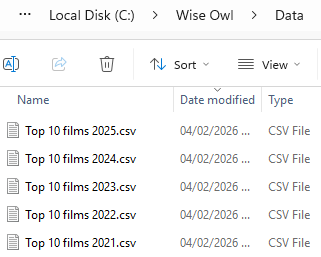
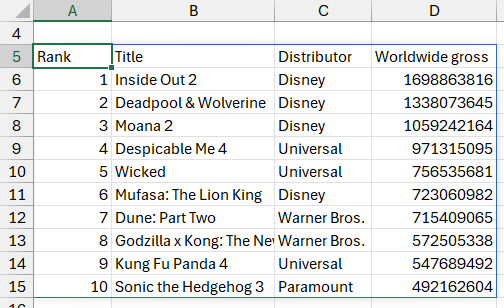
The sample data for this blog involves a collection of csv files, each of which contains the top 10 highest grossing films from a different year.

The files are stored in the same folder.
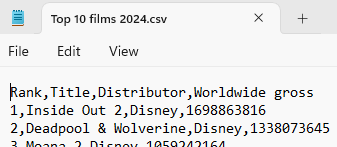
Each file contains a row of column headers followed by ten rows of film data.

Some of the films from 2024.
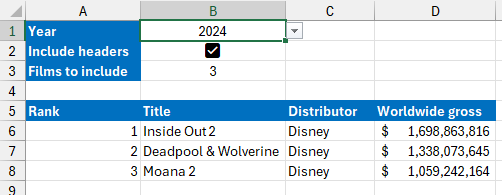
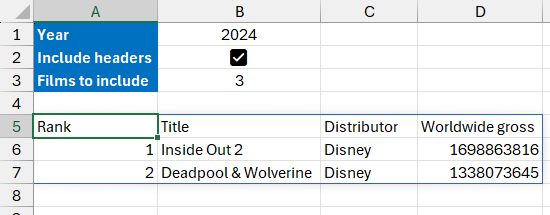
The aim is to create an easy way for a user to choose which data they want to import, as shown below:

You can choose the year from a drop down list, check a box to include the column headers, and enter the number of films to return.
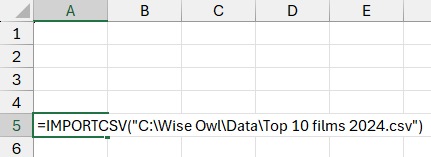
To begin, we'll use the IMPORTCSV function to return all of the data from one of the files.

This formula will import everything from the specified file.
You can see the results of the formula below:

All ten films and the column headers are imported from the file.
To make the file name variable we'll allow the user to enter the number of the year in a cell. The year is the only part of the file name which changes.

Technically it's only the last digit which changes but we'll ask the user to enter the full year.
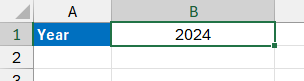
Set up a cell for the user to enter the year. In the example below, we've used cell B1:

Apply any formatting you like.
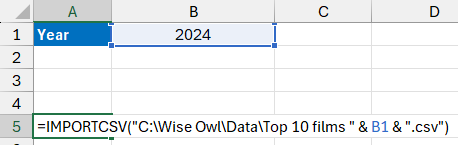
Next, we can concatenate the value of the cell into the file path:

Make sure to include a space after the word films, before the double-quotes.
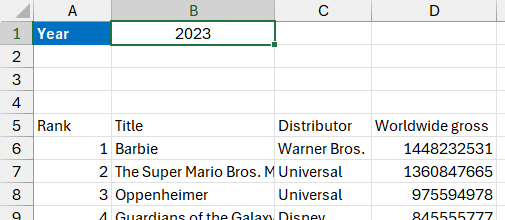
You can now change the value of cell B1 to return films from a different year.

Try entering different years in cell B1.
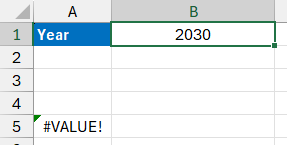
One problem with the system is that you can enter any value in cell B1, which might cause an error.

Entering anything other than a valid year results in an error.
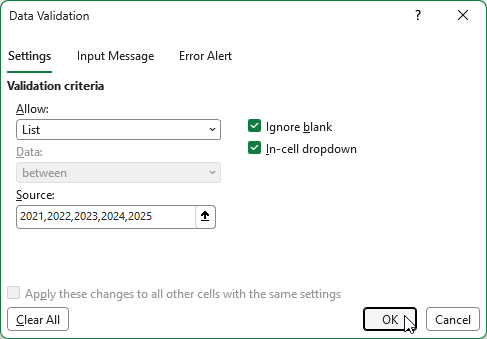
To prevent this, we can validate the cell to ensure only certain values can be entered. To do this, select the cell and from the ribbon choose Data | Data Validation | Data Validation... On the dialog box which appears, choose to allow a List and then enter a comma-separated list of the year numbers in the Source box:

You could instead type the years into separate cells in the worksheet and set the Source to reference those cells.
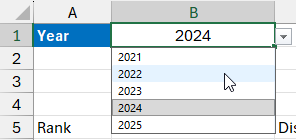
After clicking OK you can choose the year from a drop down list in cell B1.

This makes things much easier for the end user.
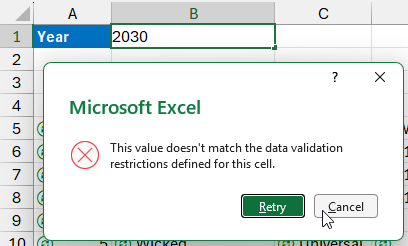
You can still type an invalid value into the cell but you'll see an error message if you do:

The standard data validation error message.
You can customise the error message on the Error Alert tab of the Data Validation dialog box.
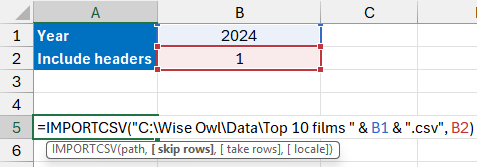
We can make it optional to import the header row by using the skip rows parameter of the IMPORTCSV function. You can pass a number to this parameter to indicate how many rows you want to exclude from the top of the file. We can enter a value of 1 to skip the header row, or a value of 0 to include it.

We've referenced cell B2 in the skip rows parameter of the function.
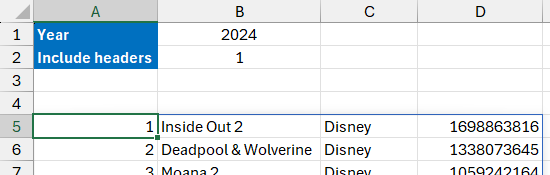
Entering a value of 1 in cell B2 means that we won't import the header row:

We've excluded the top 1 row from the imported data.
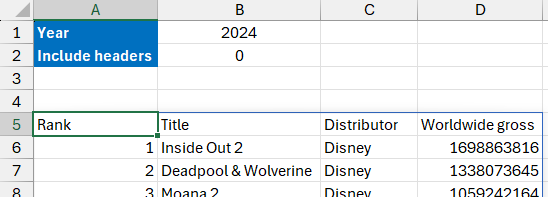
Entering a value of 0 will include the the header row:

Skipping 0 rows means the column headers are imported.
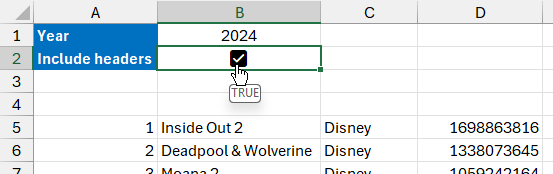
Entering a 1 or 0 isn't a very intuitive way for the user to choose whether to include the header row, so let's add a checkbox to the cell instead.
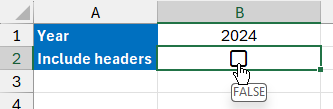
Select the cell and delete its contents, then from the ribbon choose Insert | Checkbox. When the checkbox is checked it has a value of TRUE, which is equal to 1 in Excel. When the checkbox is unchecked it has a value of FALSE, or 0.

FALSE is the same as 0, TRUE is the same as 1.
The problem is that checking the box means that we don't get the column headers (it's the same as saying, skip 1 row).

Checking the box removes the column headers.
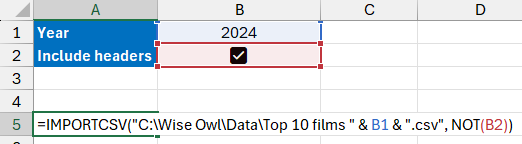
We can solve this problem by using the NOT function to convert TRUE to FALSE and vice versa:

Wrap the NOT function around the reference to cell B2.
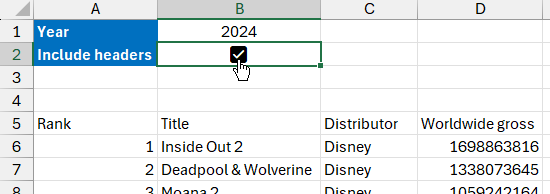
Now we can check the box to include column headers and uncheck it to exclude them.

Now the checkbox does what its label says it does!
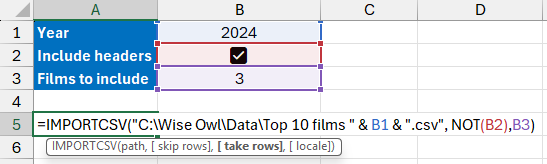
We can use the take rows parameter of the IMPORTCSV function to control how many rows of data we want to import.

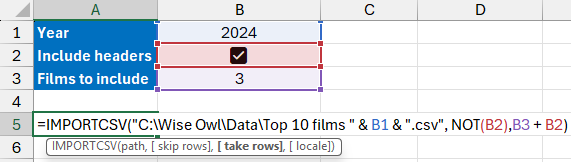
We've set the take rows parameter to refer to the number in cell B3.
This works perfectly when we don't include the column headers, but when we do, the header row is counted as one of the rows we return.

We asked for 3 rows but the header row counts as one of them.
We can solve this problem by adding the value of cell B2 - remember that when the box is checked it's equal to TRUE or 1.

When the box is checked, we add 1 to the number of rows returned.
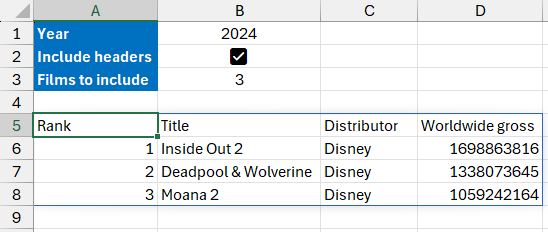
Now the function will return the correct number of rows whether we check the box or not.

Finally, we get the results we've asked for!
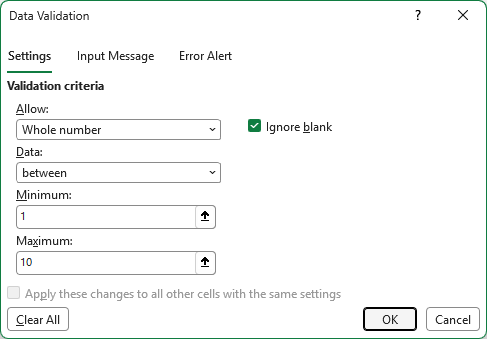
As a final flourish, you could use Data Validation to allow users to only enter a number between 1 and 10 in cell B3.

You can use these settings to ensure you can only enter a valid number.
Some other pages relevant to this blog include:
You can also book hourly online consultancy for your time zone with one of our 7 expert trainers!
Kingsmoor House
Railway Street
GLOSSOP
SK13 2AA
Landmark Offices
99 Bishopsgate
LONDON
EC2M 3XD
Holiday Inn
25 Aytoun Street
MANCHESTER
M1 3AE
© Wise Owl Business Solutions Ltd 2026. All Rights Reserved.