Read our blogs, tips and tutorials
Try our exercises or test your skills
Watch our tutorial videos or shorts
Take a self-paced course
Read our recent newsletters
License our courseware
Book expert consultancy
Buy our publications
Get help in using our site
434 attributed reviews in the last 3 years
Refreshingly small course sizes
Outstandingly good courseware
Whizzy online classrooms
Wise Owl trainers only (no freelancers)
Almost no cancellations
We have genuine integrity
We invoice after training
Review 30+ years of Wise Owl
View our top 100 clients
Search our website
We also send out useful tips in a monthly email newsletter ...

Some other pages relevant to this blog include:
You can also book hourly online consultancy for your time zone with one of our 7 expert trainers!
| How to import files from a SharePoint site in Excel |
|---|
| The Power Query tool in Excel makes it easy to import data from other files into a workbook. You can even import data from files stored in SharePoint, although you have to work a little harder to do it. This blog provides a step-by-step guide for importing data from a file stored in a SharePoint site. |
In this blog
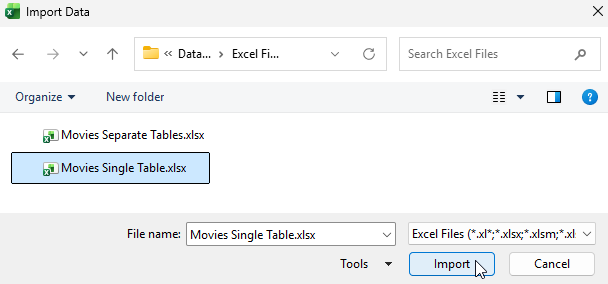
Power Query makes it easy to import data from other files into an Excel workbook. This is especially easy to do when your files are stored locally. For example, to import another Excel file you can choose Data | Get Data | From File | From Excel Workbook from the ribbon and then select the file you want to import.

Simply select the file you want to import and click Import.
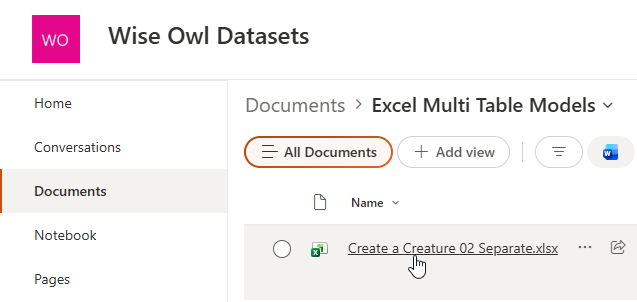
But what if your file is stored in a SharePoint site? In this blog I'd like to import data from an Excel workbook shown in the image below:

This Excel file is stored in a folder in a SharePoint site.
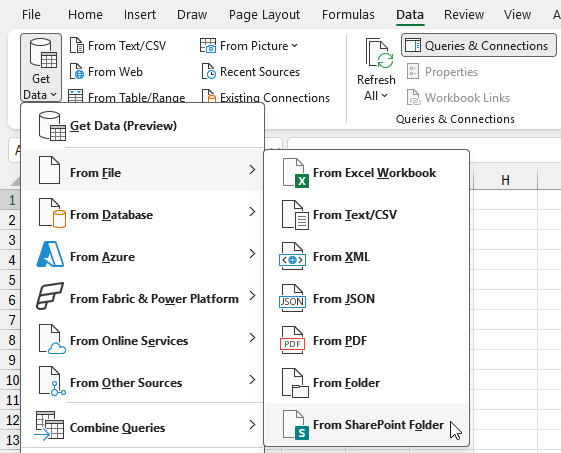
To begin importing data from a file stored in a SharePoint site, from the Excel ribbon choose Data | Get Data | From File | From SharePoint Folder

Even though we're importing from an Excel file, choose From SharePoint Folder.
In the dialog box which appears, enter the root URL of the site which contains the file you want to import.

Don't include the path to the specific folder which contains the file, just the root URL of the SharePoint site.
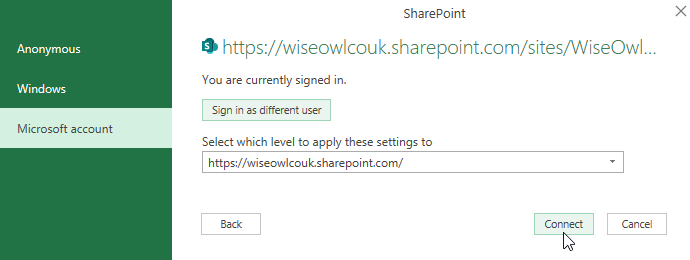
You may be asked to sign in to provide credentials to access the site. Click the Sign in button to do this.

Click Sign in and enter your credentials.
Power Query remembers your credentials so you don't have to sign in each time you connect to the SharePoint site.
After signing in, click Connect to open the connection to the SharePoint site.

After you've signed in, click Connect.
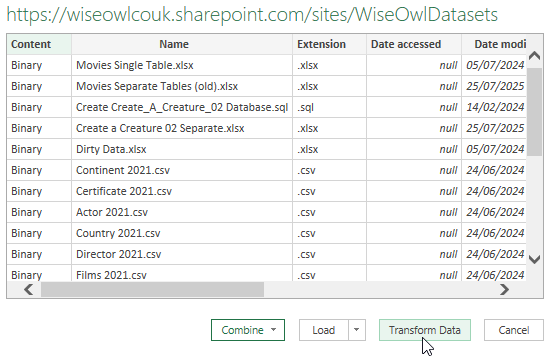
The dialog box which appears shows a preview of the files stored in the SharePoint site.

You should see a list of files stored in the site.
The next step is to edit the query in Power Query to select the file you want to import. Click the Transform Data button on the dialog box shown above to open Power Query.
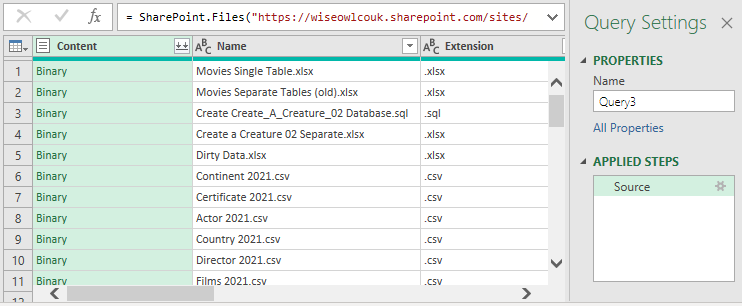
After clicking Transform Data, the Power Query editor will open and display the list of files stored in the site.

If you're lucky, you'll spot the file you want to import!
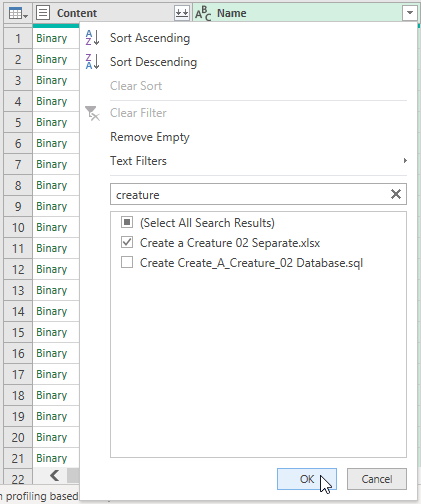
If you can't see the file you want to import, you may find it helpful to filter the list using the drop down arrows at the top of each column. In the example below, I've clicked the drop down arrow at the top of the Name column to filter by the name of the file.

You can type part of the file name in the search box, then choose the file you want to import and click OK.
Sometimes, Power Query doesn't list all the files of the SharePoint site. If you can't find the file you want to import, this blog may help you!
When you can see the file whose contents you want to import, click the Binary link in the Content column to extract its contents.

Click Binary to see the contents of the file.
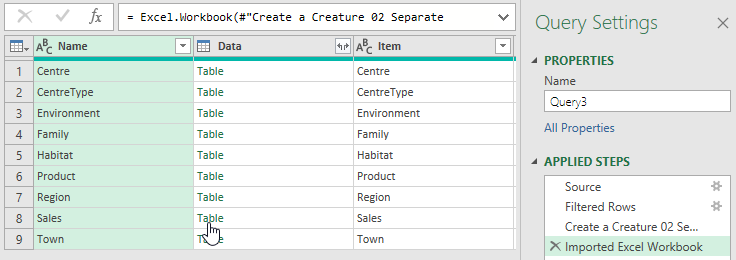
Next, you can choose which item from the workbook you want to import. Click the Table link in the Data column for the item you want to import.

Here we're choosing to extract the data from the Sales worksheet.
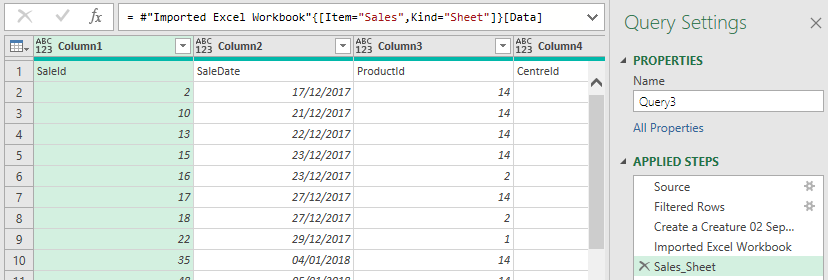
You should now see the data contained in the item you selected.

A sample of the data in the Sales worksheet.
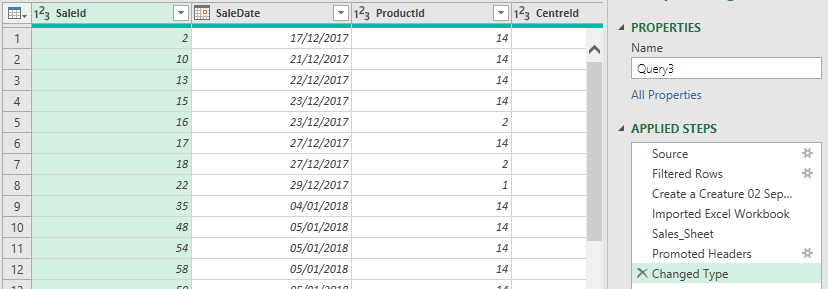
You'll almost certainly want to tidy up the data you've extracted before loading it into the Excel file. For example, you can use the first row of the worksheet to create column headers by choosing Home | Use First Row as Headers from the Power Query ribbon.

Alternatively, click the icon in the top left corner of the table and choose this option.
Power Query may automatically assign data types to the columns when you do this.

The Changed Type step was added by Power Query.
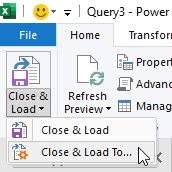
When you've finished making changes to the query, you can choose to load it into Excel by choosing Home | Close & Load | Close & Load To... from the Power Query ribbon.

Click the bottom half of the Close & Load button to see this option.
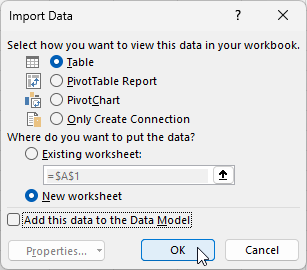
In the dialog box which appears, you can choose where to load the data.

We're choosing to load the data into a table on a new Excel worksheet.
The data will appear in the selected destination in Excel.

The results displayed in Excel.
Some other pages relevant to this blog include:
You can also book hourly online consultancy for your time zone with one of our 7 expert trainers!
Kingsmoor House
Railway Street
GLOSSOP
SK13 2AA
Landmark Offices
99 Bishopsgate
LONDON
EC2M 3XD
Holiday Inn
25 Aytoun Street
MANCHESTER
M1 3AE
© Wise Owl Business Solutions Ltd 2026. All Rights Reserved.