What is Fuzzy Matching?
Fuzzy matching is a method for comparing text values based on how similar they are to each other. Excel doesn't have a built-in way to perform fuzzy matching but Microsoft provides a free add-in which enables this functionality.
Fuzzy matching can be especially helpful when you're dealing with the typos and alternative spellings in text entered into a system by different people.
Our Example
On a recent training course, a delegate was looking for a way to group together the names of companies with similar spellings in the same table. We'll simulate this situation by using a list of film names. Here's an example of what we'd like to achieve:
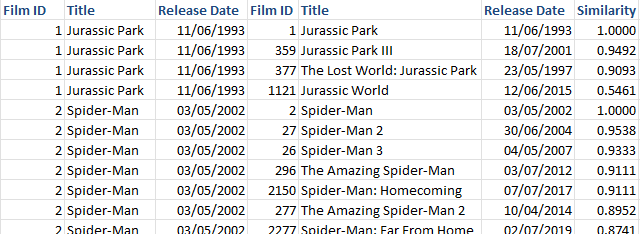
This output allows us to group films based on the similarity of their titles.
Installing the Fuzzy Lookup Add-In
Before you begin, you'll need to download the Fuzzy Lookup add-in from the Microsoft website. You can do this using the following link: https://www.microsoft.com/en-gb/download/details.aspx?id=15011

Choose a language and click Download to begin downloading the add-in.
When the download has finished, double-click the Setup.exe file to begin installing the software.
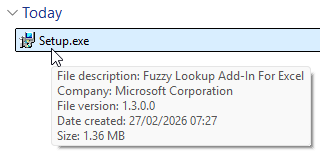
Double-click the Setup.exe file to begin installing the add-in.
When the Setup dialog box appears, click Install and then follow the instructions to install the software.
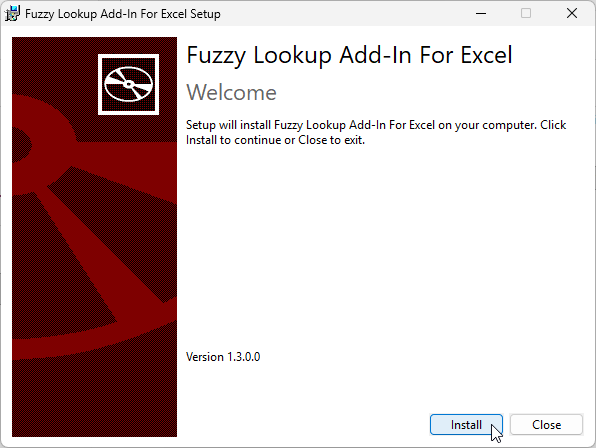
Click Install and follow the steps to install the software.
When the installer has finished, you should find a new tab in the ribbon the next time you open Excel.
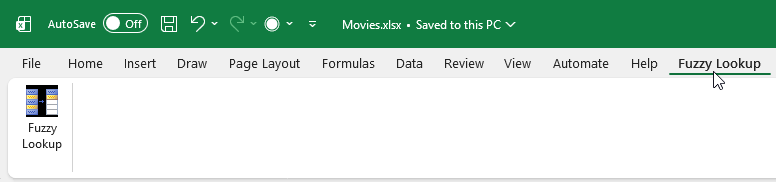
The Fuzzy Lookup tab has a single button.
If the Fuzzy Lookup tab doesn't appear automatically, you may need to enable the add-in. To do this, from the ribbon choose File | Options to open the Excel Options dialog box.
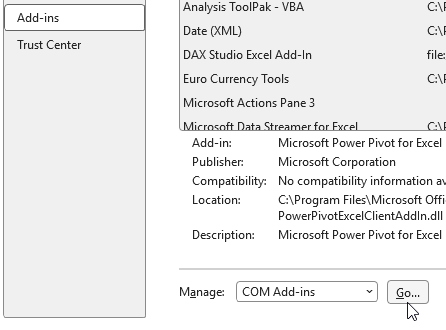
Select the Add-ins page on the left, then choose COM Add-ins from the drop down list and click Go...
Check the box for the Fuzzy Lookup Add-In For Excel and then click OK.
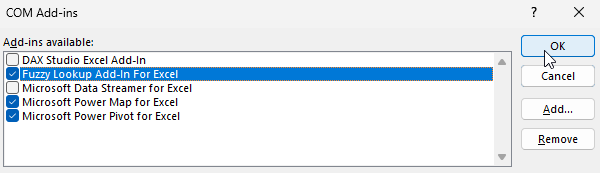
Check the relevant box and click OK to enable the add-in.
Preparing the Data
The Fuzzy Lookup add-in requires an Excel table to work with. If your data isn't in a table, you can create one easily. Start by selecting any cell in the range containing your data and from the ribbon choose Insert | Table.
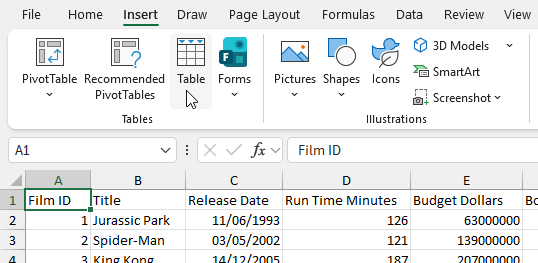
You can select any single cell in the data range when you create a table.
Fill in the dialog box as shown below and then click OK.
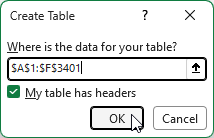
The dialog box should recognise the data range and whether it has column headers.
Excel will create the table and apply a default format to it. You can change a variety of table options on the Table Design tab of the ribbon.
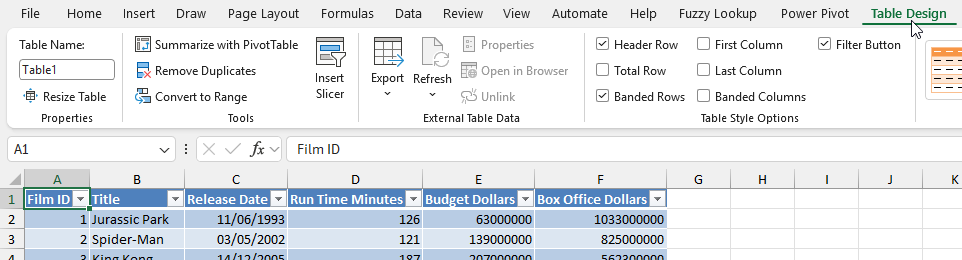
The Table Design tab appears in the ribbon when you select any cell in the table.
It's a good idea to rename the table. To do this, select any cell in the table and in the Table Design tab change the Table Name property and press Enter.
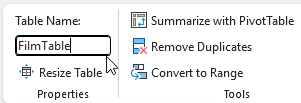
Type a new name (don't use spaces!) and press Enter.
The Fuzzy Lookup Pane
To start the fuzzy lookup, from the ribbon choose Fuzzy Lookup | Fuzzy Lookup. The Fuzzy Lookup pane will appear on the right of the Excel window, as shown in the diagram below:
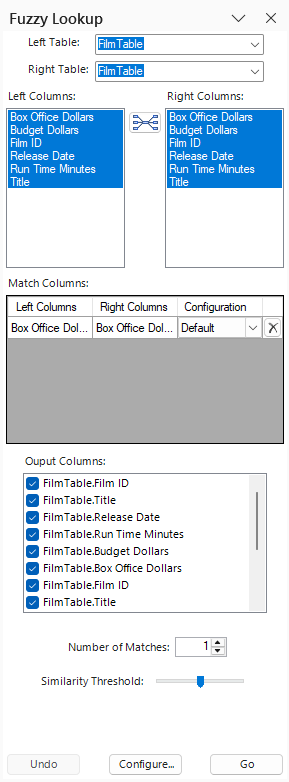
We'll need to change many of these options to get the results we want.
Choosing Tables and Columns to Match
The Fuzzy Lookup tool will guess which tables and columns you want to match, but you'll almost certainly want to change it's assumptions.
Start by choosing which tables you want to perform the matching between. This is easy to do if you have only a single table in the workbook!
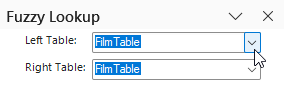
You can choose different tables from the drop down lists if you need to.
Next, choose which columns you want the match to be performed on. You'll probably need to start by deleting columns that have been selected automatically. In our example, Excel chose to match on the Box Office Dollars column so we'll need to remove this match.
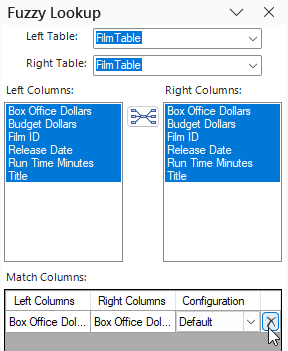
Click the X next to any matched columns you want to remove.
Now we can add the columns we want to perform the match between. You can choose multiple columns from the different tables but for our example we need to match only on the Title column.
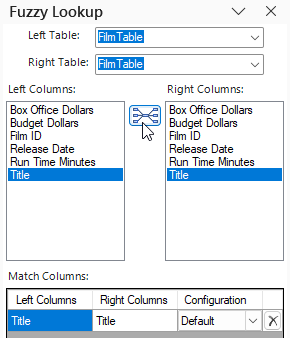
Select the columns in each table and click the middle button to add them to the list of match columns.
Choosing Output Columns
Next, choose which columns you'd like to output. By default, you'll get a copy of each column from the two tables you've selected. You can uncheck the columns you don't want to include in the output.
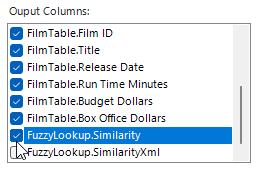
The FuzzyLookup.Similarity column will show how similar the matched values are.
Controlling Matches
You can choose the maximum number of matches you want to return for each value, as well as the threshold for which Excel considers an item to be a match.
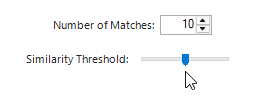
The further to the right the slider is, the more similar items must be to be considered a match.
The Fuzzy Lookup add-in uses the Levenshtein distance to determine the similarity of two strings of text. The Similarity Threshold option sets the minimum value of the Levenshtein distance for two strings to be considered a match.
Starting the Fuzzy Lookup
Before starting the lookup, you can choose where you want the output to appear. If you select a cell in one of the two tables you're matching, the output columns will appear in that table. If you select a cell elsewhere on a worksheet, Excel will create a new table to hold the output columns.

We've selected a cell in the original table.
You may prefer to create the output in a separate table to avoid adding extra rows to the original data table.
Once you've chosen where you want the output to appear, you can begin performing the lookup by clicking Go.
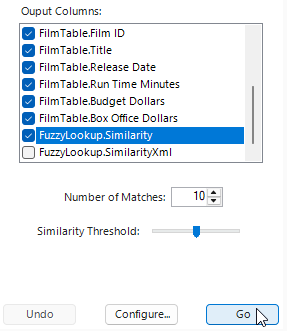
Click Go to start the matching process.
The add-in takes some time to process but it shows a dialog box to indicate its progress.
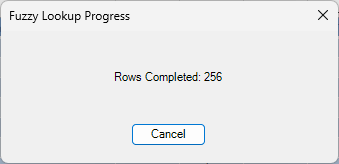
Time to grab a cup of tea?
When Excel has finished processing, you'll see the results in the selected destination:

The tool has done a reasonable job of grouping films of a particular series or franchise together.
If you want to remove the output, you can click the Undo button at the bottom of the Fuzzy Lookup pane.
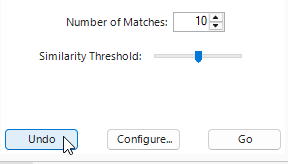
Click Undo to remove the output.
Comparing Different Tables
The example described above compares all the values in the same table, but you can easily compare different tables using the same technique.
In the example below, we've created a small table containing superhero names.
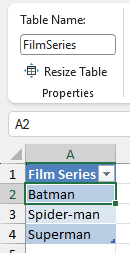
We've called the table FilmSeries.
Now we can compare this small table with the full list of films using the settings shown in the image below:
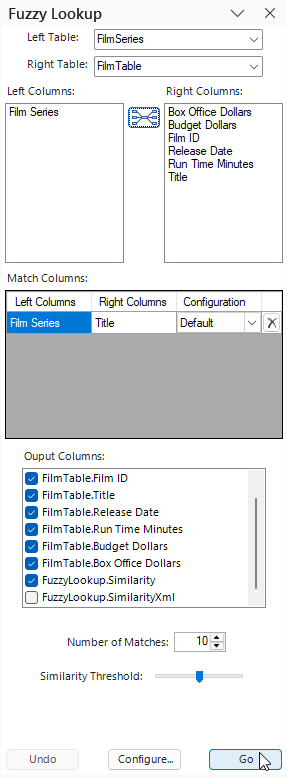
Here are the settings used to compare the two tables.
You can see some of the output of the fuzzy matching in the image below:
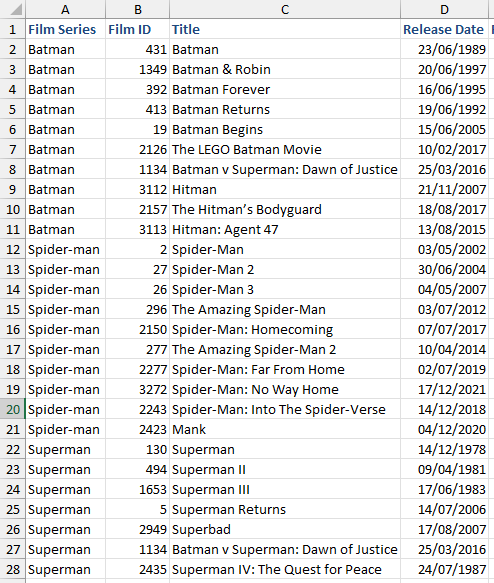
We might need to tweak the settings to get better results!