Read our blogs, tips and tutorials
Try our exercises or test your skills
Watch our tutorial videos or shorts
Take a self-paced course
Read our recent newsletters
License our courseware
Book expert consultancy
Buy our publications
Get help in using our site
427 attributed reviews in the last 3 years
Refreshingly small course sizes
Outstandingly good courseware
Whizzy online classrooms
Wise Owl trainers only (no freelancers)
Almost no cancellations
We have genuine integrity
We invoice after training
Review 30+ years of Wise Owl
View our top 100 clients
Search our website
We also send out useful tips in a monthly email newsletter ...

Some other pages relevant to this blog include:
You can also book hourly online consultancy for your time zone with one of our 7 expert trainers!
| Import text files with Excel functions |
|---|
| You've always been able to import text files into an Excel workbook using one of a variety of data import tools. Now, you can write simple formulas to do the same thing using Excel's new IMPORTTEXT and IMPORTCSV functions! This blog provides a quick overview of how they work. |
In this blog
If you're fed up of using a data import wizard to import text files into Excel, rejoice! For there are now two functions you can use to import data by writing simple formulas. This blog explains how to use the IMPORTTEXT and IMPORTCSV functions,
At the time of writing, in order to access these functions, your copy of Excel must be on the Beta channel running Windows Version 2502 (Build 18604.20002) or later .
To demonstrate how to import data using functions we'll use two sample files containing a list of the top 50 highest grossing films of all time. One version of the data is stored in a tab-delimited text (txt) file, the other is in a comma-separated value (csv) file.

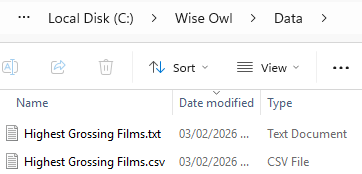
Our two files have the same name with different extensions.
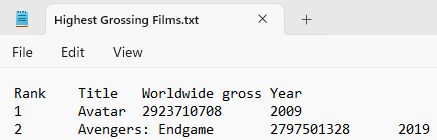
In the txt file, the values are separated by tab spaces:

The top two films in the txt file.
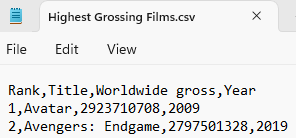
In the csv file, the values are separate by commas:

The same data in the csv file.
As its name suggests, the IMPORTCSV function is used to import data from a csv file. Here's the syntax of the function (parameters listed in square brackets are optional):
IMPORTCSV( Path, [Skip_rows], [Take_rows], [Locale] )
The only thing we need to provide is the path to the file whose contents we want to import.

You can use a local path or a URL, entered as a string within double-quotes.
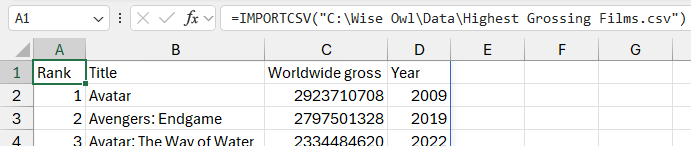
When you commit the formula, Excel will take a short time to think about things before outputting the contents of the file in a spilled array.

The results of the formula.
You'll get an error if you enter an invalid file path:

Here I've used the wrong file name, calling it Movies instead of Films.
You can use the Skip_rows parameter to ignore rows at the start of the file. In the example below, I've excluded the column headings by passing the value of 1 to the Skip_rows parameter.

This time, we don't get the column headers.
You can use negative numbers to exclude rows at the bottom of the file.
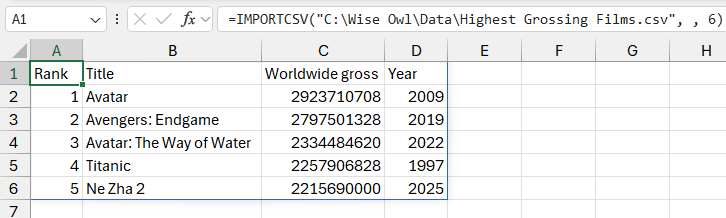
You can use the Take_rows parameter to choose how many rows you want to return. In the example below I've returned the header row and the top five films by setting the Take_rows parameter to 6.

We get the top 6 rows, including the column headers.
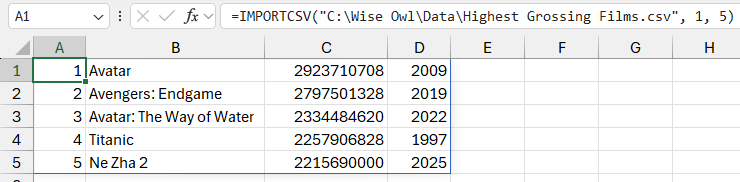
You can combine skipping rows and taking rows, as shown in the example below:

I've skipped the top row and then taken the next 5 rows.
You can use a negative number for the Take_rows parameter to get rows from the bottom of the list.
The IMPORTCSV function is perfect when your data is separated by commas but for any other delimiters you'll need to use the IMPORTTEXT function. Here's the syntax of the function:
IMPORTTEXT( Path, [Delimiter], [Skip_rows], [Take_rows], [Encoding], [Locale] )
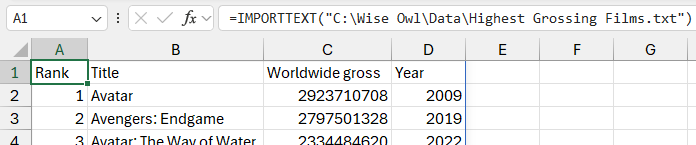
The delimiter parameter is optional and, if you omit it, defaults to a tab space. This is perfect to import our tab-delimited text file!

The results of the basic version of the function.
If your file uses any other kind of delimiter, you can enter the delimiter character as a string. Here's how to use the IMPORTTEXT function to import our csv file:

I've set the delimiter to a comma, written in double-quotes.
If your delimiter is a special character, you can nest the CHAR function in the Delimiter parameter to return it.
You can use the Skip_rows and Take_rows parameters in the same way as for the IMPORTCSV function.
Once you've imported the data, you can use other dynamic array functions to manipulate it. Why not try the FILTER function, TAKE and DROP functions, and GROUPBY and PIVOTBY functions for starters!
Some other pages relevant to this blog include:
You can also book hourly online consultancy for your time zone with one of our 7 expert trainers!
Kingsmoor House
Railway Street
GLOSSOP
SK13 2AA
Landmark Offices
99 Bishopsgate
LONDON
EC2M 3XD
Holiday Inn
25 Aytoun Street
MANCHESTER
M1 3AE
© Wise Owl Business Solutions Ltd 2026. All Rights Reserved.