Read our blogs, tips and tutorials
Try our exercises or test your skills
Watch our tutorial videos
Catch up on one of our webinars
Take a self-paced course
Read our recent newsletters
License our courseware
Book expert consultancy
Buy our publications
Get help in using our site
392 attributed reviews in the last 3 years
Refreshingly small course sizes
Outstandingly good courseware
Whizzy online classrooms
Wise Owl trainers only (no freelancers)
Almost no cancellations
We have genuine integrity
We invoice after training
Review 30+ years of Wise Owl
View our top 100 clients
Search our website
We also send out useful tips in a monthly email newsletter ...

Some other pages relevant to this blog include:
You can also book hourly online consultancy for your time zone with one of our 7 expert trainers!
| FILTER vs. CALCULATE: A Common Misunderstanding in DAX |
|---|
| A common mistake in DAX that I come across with clients is the confusion between the FILTER and CALCULATE functions. This blog will explain the difference between the two and when to use one over the other. |
In this blog
DAX is a tricky language and perhaps the hardest thing to wrap your head around is the CALCULATE function.
A common misunderstanding lies in the difference in behaviour between the CALCULATE and FILTER functions when they are used on the same column.

FILTER seems to remove data, while CALCULATE appears to do something else entirely.
This blog will cover the difference between using CALCULATE to apply a filter directly versus using FILTER inside CALCULATE .
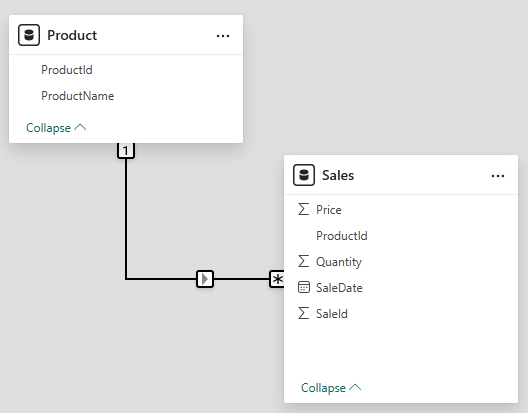
Our model consists of two tables: Product and Sales.
One product has many sales and the tables are joined using the ProductId column in each table.

The arrow indicates the direction of filtering: each sale is filtered by a single product.
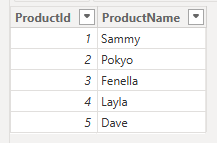
The Product table has two columns: ProductId which is a unique number on each row and ProductName.

Our cuddly toys are back again.
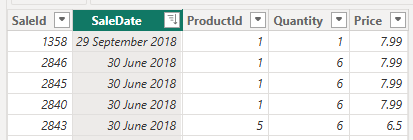
Our fact table is called Sales, each row shows the Quantity bought, the Price paid and identifies which product was bought via the ProductId.

The SaleId is unique per sale; the SaleDate is not.
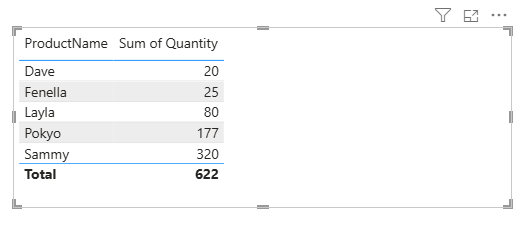
To complete the setup, we've created a table visual showing the total Quantity sold for each ProductName.

This gives us a basic visual showing units sold per ProductName.
The CALCULATE function lets you add, change or remove filters on a given calculation.
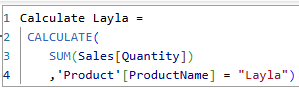
We are going to create a new measure to calculate the sum of quantity, setting the ProductName to Layla.

Create a new measure using this DAX.
When CALCULATE applies a filter directly to a column, it overwrites any existing filter on that column.
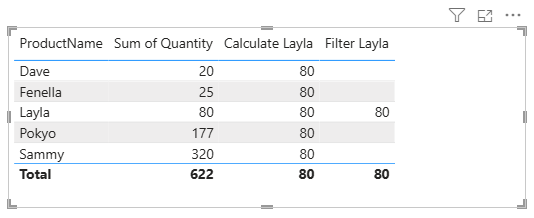
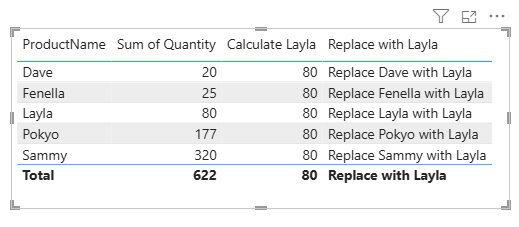
This means that on the first row of the table visual, the value returned is not Dave’s 20 units sold, but Layla’s 80 units.

The final column describes the change occurring on each row of the visual.
This combination of filters is referred to as the filter context. You can read more about it here.
The FILTER function allows you to add an additional filter to a table by checking a condition on each row.
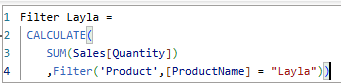
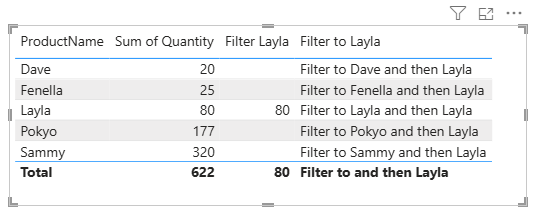
Create a measure that applies a second filter to the Product table, checking that ProductName is equal to Layla.

We are still using CALCULATE, but nesting the FILTER function inside it.
In this case, CALCULATE keeps the existing filter on the ProductName column and adds this new filter.
This means on the first row, the value returned is blank, since the ProductName can't be Dave and Layla at the same time. As can be seen in the diagram below, the calculation returns blank for all rows that are not Layla.

The final column describes the change occurring on each row.
The only row that returns a value is Layla, since both the row filter and the FILTER function are testing the same condition: ProductName = Layla.
The easiest way to decide which approach to use is to as the question: Do I want to keep the existing filter or replace it?
Function | Conditions applied | Outcome | When to use |
|---|---|---|---|
SUM | ProductName = Dave | Sales for the current product. | Default aggregation. |
CALCULATE | ProductName = Layla | Ignore current product, return Layla's sales. | When you want to replace the existing filter. |
CALCULATE + FILTER | ProductName = Dave and ProductName = Layla | Filter to current product sales, then filter to only Layla's sales. | When adding additional filters to the existing ones. |
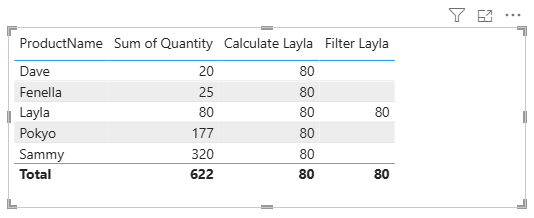
If we place both measures in the same table visual, the contrast becomes much clearer.

If you are filtering a column not in the visual, the difference is largely academic!
Some other pages relevant to this blog include:
You can also book hourly online consultancy for your time zone with one of our 7 expert trainers!
Kingsmoor House
Railway Street
GLOSSOP
SK13 2AA
Landmark Offices
99 Bishopsgate
LONDON
EC2M 3XD
Holiday Inn
25 Aytoun Street
MANCHESTER
M1 3AE
© Wise Owl Business Solutions Ltd 2026. All Rights Reserved.