This first part of the blog will show what DAX functions are and how to create and use them; in the second part I'll look at how you can pass parameters to functions by value or by expression (and why you should care about this!).
Our example
In our movies database (you can download it here if you want to try the examples in this blog yourself) you can see these details for each film:
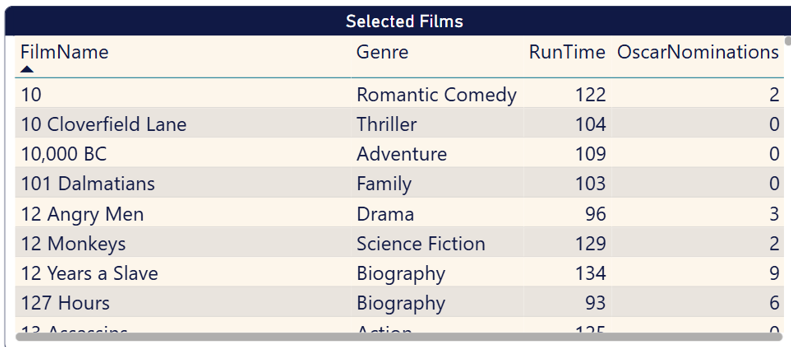
The start of the list of films, showing the title, genre, run time in minutes and number of Oscar nominations for each.
What I want to do is to record next to each a score showing how likely I would be to want to watch it (I like musicals but not horror films, don't like films which are too short or too long and other things being equal prefer a film which has been nominated for an Oscar or two).
I could calculate this in a complicated expression in a calculated column, but the advantage of putting this into a separate function is that I can then tweak the logic any time I like, and these tweaks will automatically feed through immediately to wherever the function is used.
This blog will take you through the process of creating a function like this!
Step 1 - Identify the input parameters
The first thing to do is to work out what your function needs in order to work (and what you're going to call these parameters, and what sort of data they'll contain). For my example there are three inputs:
Number | Parameter name | What it will contain |
|---|
1 | GenreName | A string of text containing the genre of a film. |
2 | Minutes | An integer value giving the duration (run time) of a film in minutes. |
3 | Nominations | The number of Oscar nominations a film has received. |
You will notice that in each case I've used a different name for my parameter to the source column name (for example, the parameter GenreName will take the value of the Genre column). This is deliberate, just to show that the names of parameters don't have to be the same as the names of the column values passed into them.
Step 2 - Identify the parameter types
There are two main types of parameter that you can pass to a DAX user-defined function, and one vague catch-all type:
Parameter type | Notes |
|---|
Scalar | A single value (this can be a string of text, a number or any other data type) |
Table | A table of data |
AnyVal | Use this when you're not sure what data type to use |
The other data types - less used - are AnyRef, CalendarRef, MeasureRef and TableRef, but these are beyond the scope of this blog!
Step 3 - Identify the parameter subtypes (data types)
The next step is to work out what you should use for each parameter data type. The main choices are:
Data type | What it will contain |
|---|
Variant | Use this when you're not sure! |
Int64 | Any whole number |
Double | Any other number |
String | Any string of text |
DateTime | Any date or time |
Boolean | Any yes/no value |
So in our example we should use the following data types:
Number | Parameter name | Data type |
|---|
1 | GenreName | String |
2 | Minutes | Int64 |
3 | Nominations | Int64 |
You can miss out the data type ("subtype") specification when listing parameters, but it's good practice to include it to make errors less likely (if your function expects an apple and you pass it a pear, DAX will complain).
Step 4 - Learn the syntax
Here is the syntax of a function:
DEFINE
FUNCTION NameOfFunction = (
FirstParameter : Type Subtype ParameterMode,
...,
LastParameter : Type Subtype ParameterMode
) =>
RETURN Something
For the moment we'll miss out the ParameterMode (I'll explain what this is - and how to use it - in the second part of this blog).
Note that although you shouldn't miss out the type and subtype of each parameter, you can, so this simpler syntax would work too:
DEFINE
FUNCTION NameOfFunction = (
FirstParameter,
...,
LastParameter
) =>
RETURN Something
Where a function has a single line of code, you can miss out the RETURN statement too:
DEFINE
FUNCTION NameOfFunction = (
FirstParameter,
...,
LastParameter
) => Expression to return
Step 5 - Create your function
The easiest place to create your DAX functions is probably in the DAX query editor:
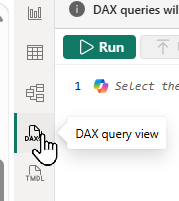
Click on this button on the left of Power BI to invoke DAX query view.
Here's a version of our function that you could type in:
DEFINE
FUNCTION FilmRating = (
GenreName: SCALAR STRING,
Minutes: SCALAR INT64,
Nominations: SCALAR INT64
) =>
VAR GenreRating = SWITCH(
GenreName,
"Musical", 2,
"Horror", 0,
1
)
VAR LengthRating = SWITCH(
TRUE(),
Minutes < 90, 1,
Minutes > 150, 0,
2
)
VAR OscarRating = SWITCH(
TRUE(),
Nominations > 5, 2,
Nominations > 1, 1,
0
)
VAR FinalRating = GenreRating + LengthRating + OscarRating
RETURN FinalRating
EVALUATE {
FilmRating("Musical",120,10)
}
EVALUATE {
FilmRating("Horror",200,0)
}
Here are the two tables of data this would return when you click on the Run button at the top left of the DAX query editor:
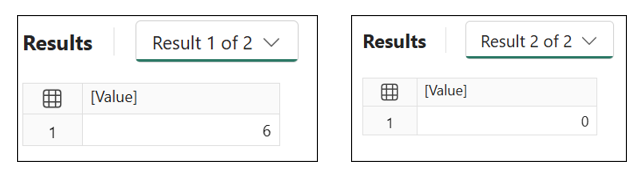
The first EVALUATE returns 2 + 2 + 2 = 6; the second returns 0 + 0 + 0 = 0.
Note that the EVALUATE command must return a table of data, so you have to surround your call to the FilmRating function with { and } curly brackets.
Step 6 - Saving your function
You can save a function that you've created in two ways:
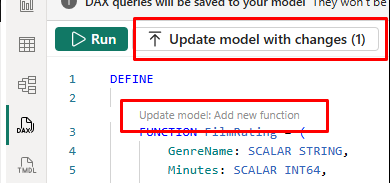
Click on the top button to save all of the functions in your query, or the bottom one to save just the current one.
You'll then be prompted on what you want to do:
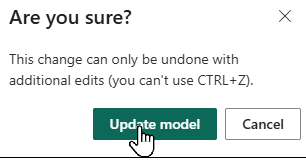
Confirm you want to update your model.
You can now see your new function in your semantic model on the right-hand side of Power BI:
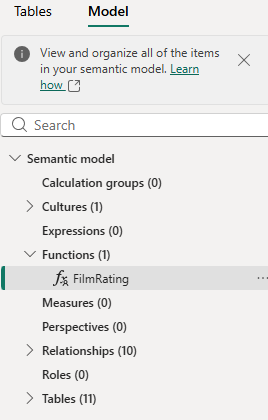
Click on the Model tab to see your function like this.
Note that you can click on the more options menu to the right of the function name to edit or run it:
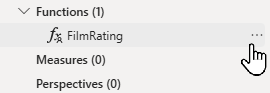
The options which appear when you click on the three dots are reasonably clear.
Step 7 - Testing your function in the DAX query window
For a quick way to test your function, choose to evaluate it:
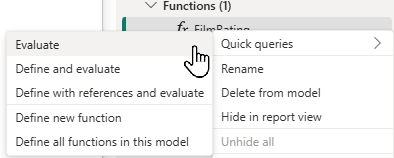
Click on the more options menu shown above, then choose to create a quick query to evaluate your function.
You can then fill in the parameter values and click on Run to run your function:
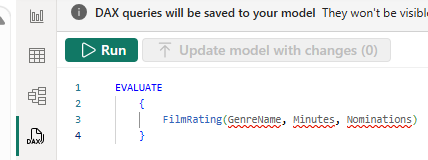
An easy way to test if your function is doing what it should.
Step 8 - Testing your function in a report
Time now to use your function in anger. For example, you could add a calculated column to the Film table:

Intellisense for your function shows the parameters you can use.
Here's the full expression you could use:
Rating = FilmRating(
RELATED(Genre[Genre]),
Film[RunTimeMinutes],
Film[OscarNominations]
)
And here's what you might get if you incorporate this column into our initial table visual:
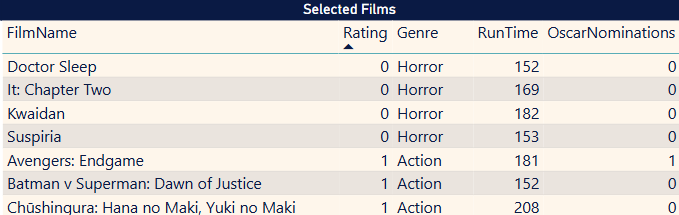
The films sorted by rating, with the lowest rating first.
This shows that there are 4 films with 0 rating (they're too long or too short horror films with no Oscar nominations).
The great thing now is that if you don't agree with my ratings - perhaps you LIKE horror films? - you can just change the function in the DAX query editor: everything else can stay the same.