Read our blogs, tips and tutorials
Try our exercises or test your skills
Watch our tutorial videos
Catch up on one of our webinars
Take a self-paced course
Read our recent newsletters
License our courseware
Book expert consultancy
Buy our publications
Get help in using our site
400 attributed reviews in the last 3 years
Refreshingly small course sizes
Outstandingly good courseware
Whizzy online classrooms
Wise Owl trainers only (no freelancers)
Almost no cancellations
We have genuine integrity
We invoice after training
Review 30+ years of Wise Owl
View our top 100 clients
Search our website
We also send out useful tips in a monthly email newsletter ...

Some other pages relevant to this blog include:
You can also book hourly online consultancy for your time zone with one of our 7 expert trainers!
| Shape maps have finally been incorporated into Power BI |
|---|
| After many years in the preview wilderness, Shape Maps have finally been incorporated into Power BI. This blog explains how to use them! |
In this blog
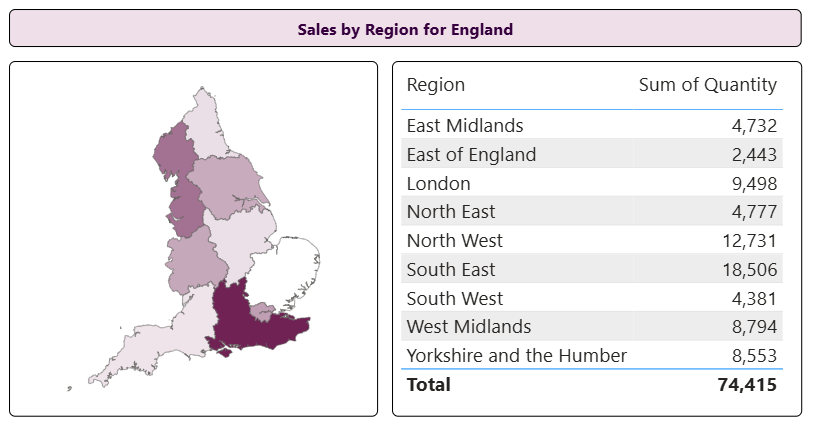
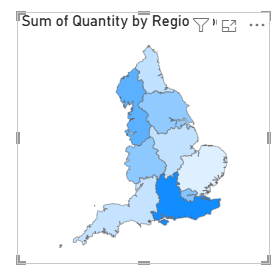
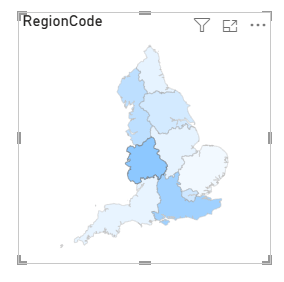
Shape maps (sometimes called, wonderfully, choropleths) look like this:

A shape map showing sales by region.
This blog shows the steps you need to follow to create a shape map like this.
If you spend a lot of time in Power BI working with maps you may prefer to create reference layers in an Azure map visual instead.
This is probably the hardest step. Power BI requires you to upload a spatial map in either TopoJSON or GeoJSON format (TopoJSON is the simpler format, and probably the best one to aim for). These spatial maps contain details of all of the boundaries in the region you're interested in. A good thing to Google is something like this:
Download TopoJSON map UK regions
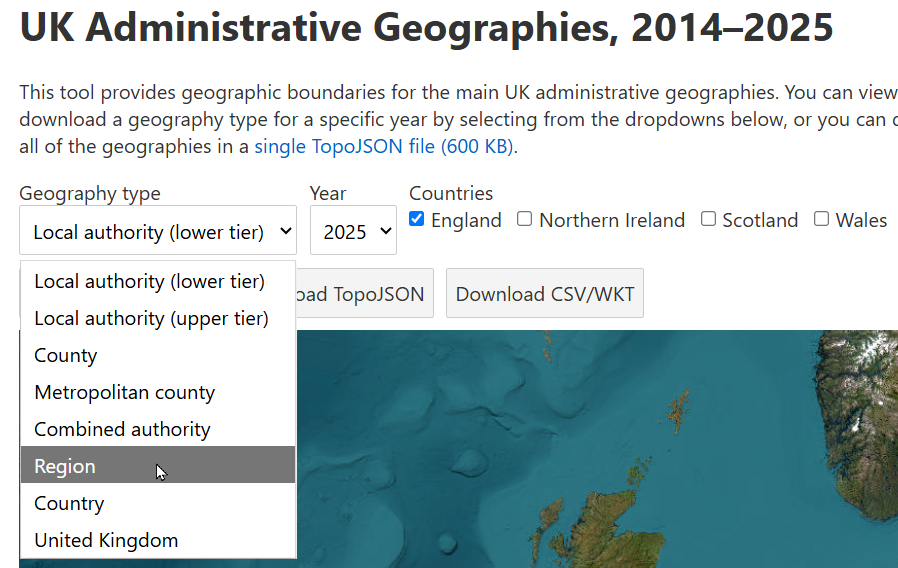
For this example I went to this excellent tool created by Ahmad Barclay based on the Open Geography portal from the Office for National Statistics:

I chose to download English regions, and clicked on the Download TopoJSON button.
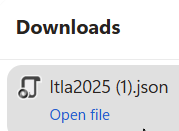
This will give you a JSON file:

I've downloaded this twice now, hence the (1) subscript!
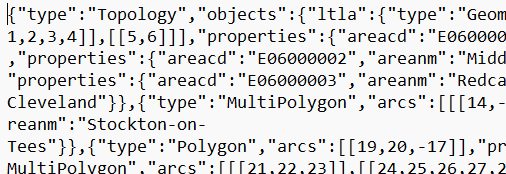
Here's what this looks like:

The start of the JSON file (it contains over 280,000 characters).
You can now create a shape map in Power BI:

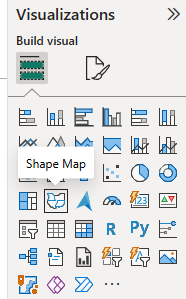
Click on the shape map visual.
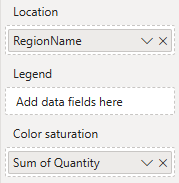
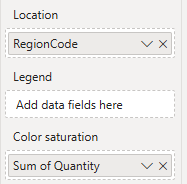
Assign data fields to this 9although as we'll see you may later want to change these):

This would in theory show regions coloured according to how many sales there were in each, although there are good reasons not to take this approach (read on).
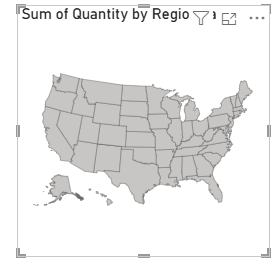
Your map won't look very prepossessing yet:

You haven't uploaded a spatial map, so guess which default Power BI uses?
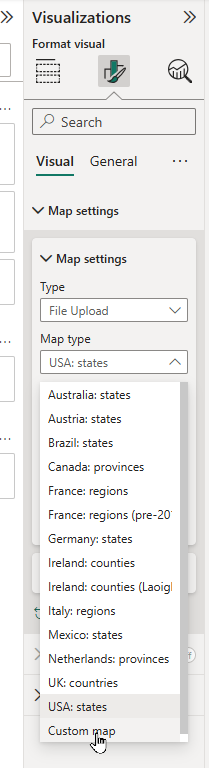
The next thing to do is to click on your shape map, go to its formating properties and choose to upload a custom map:

Choose File Upload, then choose Custom map (scroll to the bottom of the list to find this).
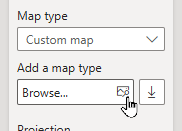
Now choose to browse to the map you've downloaded:

Click on this button to find a map.
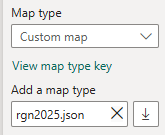
When you've chosen your downloaded shape map, you should see this:

The shape map name appears in the box.
Things are looking better!

Some regions are filled in; some aren't.
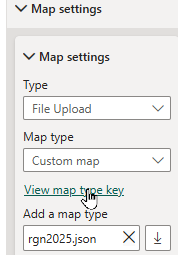
This is probably the easiest step to miss - you need to find out how Power BI is linking your data to the regions:

Click on this link to show the map type key.
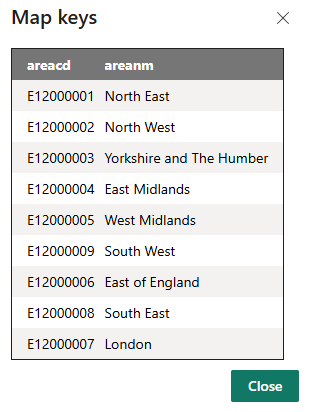
For this case you'll see this dialog box:

Something must match to either the areacd or areanm columns.
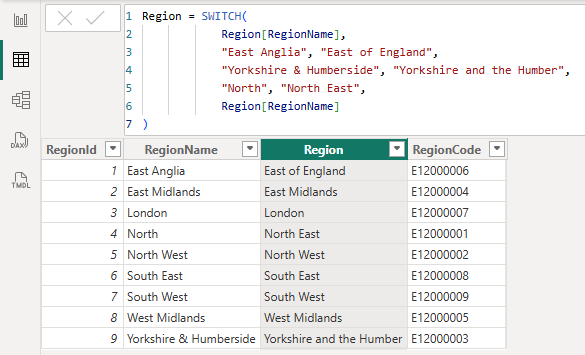
The easiest thing to do now is to create a DAX column giving either the correct region:

Here we've created a formula which corrects 3 region names: East Anglia, Yorkshire and Humberside and the North.
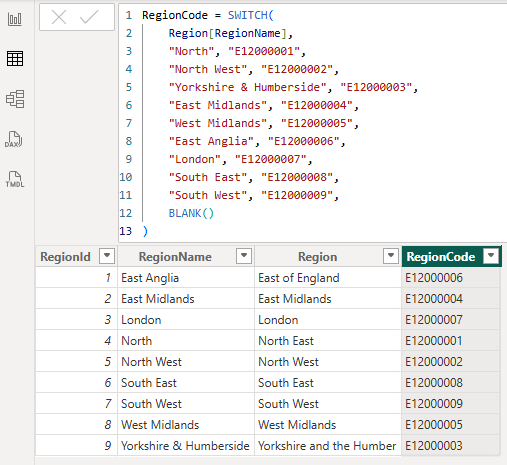
Or (probably better) create a calculated column which gives the region code:

The code is more likely to work correctly the first time, as codes are harder to misspell.
You can now change your shape map visual to show one of these new columns:

Here I'm showing the region code.
Things are now looking good!

The final shape map - well, almost.
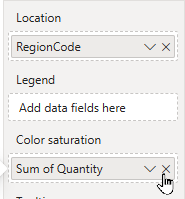
The shape map's built in colour saturation isn't that flexible, so it's probably best to apply conditional formatting. First remove the Color saturation field:

Delete this column - your map will now be monochrome.
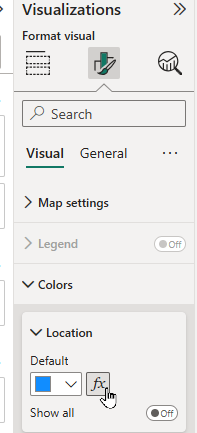
Now go to the conditional formatting button for the map colour:

Click on this button to make the location colours more variable.
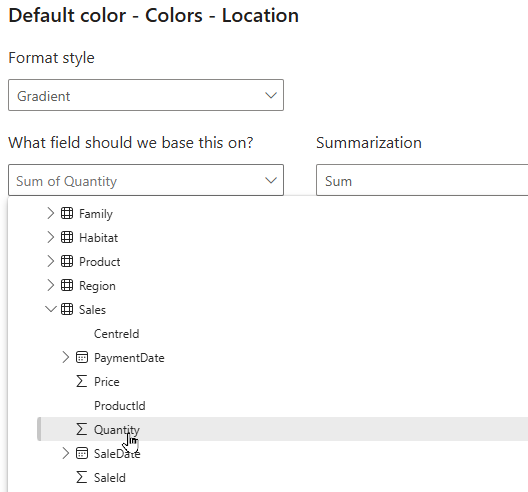
Here I've set the colour to be a gradient fill based on the total of the Quantity column in the Sales table:

My gradient fill choice.
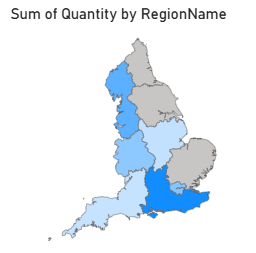
The final result won't necessarily look that different, but you'll have more control over it:

My final visual.
Sam says that the shape visual has been in preview for 10 years. I am curious why Microsoft - having waited so long - suddenly decided that the Summer of 2026 was when the shape visual should be allowed out of preview!
Some other pages relevant to this blog include:
You can also book hourly online consultancy for your time zone with one of our 7 expert trainers!
Kingsmoor House
Railway Street
GLOSSOP
SK13 2AA
Landmark Offices
6 Bevis Marks
LONDON
EC3A 7BA
c/o Holiday Inn
25 Aytoun Street
MANCHESTER
M1 3AE
© Wise Owl Business Solutions Ltd 2026. All Rights Reserved.