After you've written a set of Excel VBA macros, how do you make it easy for your end-users to run them? You could draw clickable buttons on a worksheet, assign the code to keyboard shortcuts, or even teach your users how to modify the Excel ribbon for their personal profile. Perhaps the most professional-looking way to do this however involves adding custom buttons to the ribbon associated with the file which contains your code.

A simple example of the type of customisation you can achieve.
If you want to modify the ribbon for a specific Excel file, you'll need to create an XML file which customises the user interface. While you can do this manually with just a basic text editor, it's much more convenient to use the open source Office RibbonX Editor tool!
Installing the Office RIbbonX Editor
You can download the Office RibbonX Editor tool from its homepage on GitHub.
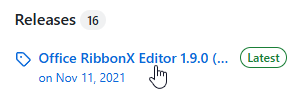
Find this link to see the latest releases you can download.
Once you've downloaded the installer file, double-click it to install the software.
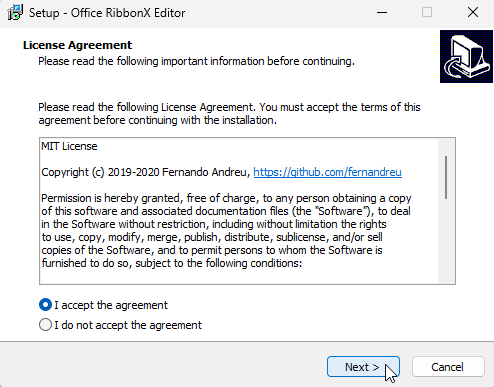
Follow the wizard to install the software.
After the installation is complete, you can run the tool from the Start menu in the usual way.
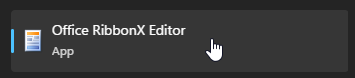
You can search for the Office RibbonX Editor application.
The tool looks quite empty when you first open it.
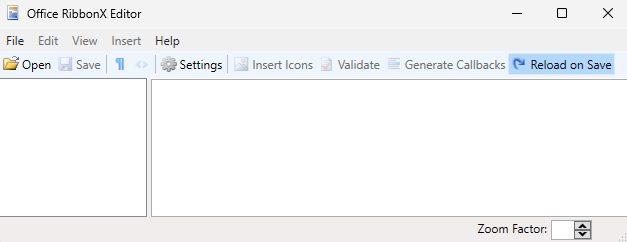
Not much to see here.
Things will look more interesting after we've opened an Excel file, but first we need some code to attach to our ribbon buttons!
Writing Code to Attach to Buttons
You can attach standard subroutines to ribbon buttons. Here's an example of a basic procedure we've added to a module in a new Excel workbook:
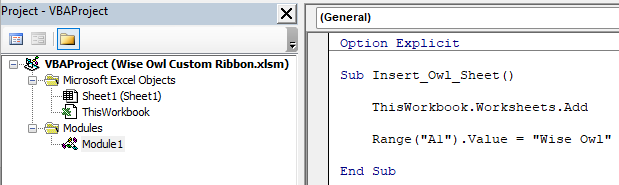
The subroutine is stored in a module in a workbook called Wise Owl Custom Ribbon.xlsm.
To attach a subroutine to a ribbon button, you must provide it with a parameter which uses the IRibbonControl type. Here's how to modify our basic subroutine to allow it to be attached to a ribbon button:
Sub Insert_Owl_Sheet(control As IRibbonControl)
ThisWorkbook.Worksheets.Add
Range("A1").Value = "Wise Owl"
End Sub
After modifying the subroutine, save the Excel file which contains the code and then close it. Next, we can customise the file's ribbon in the Office RibbonX Editor.
Creating a Custom UI File
To modify the ribbon for the file which contains the code, you'll first need to open it in the Office RibbonX Editor. To do this, choose File | Open and pick the Excel file containing the code you've just written.
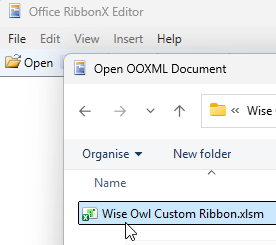
Open the file which contains the code.
Next, we need to add a custom user interface file to the workbook. To do this, right-click the file you've just opened in the Office RibbonX Editor and choose to insert a Custom UI Part.
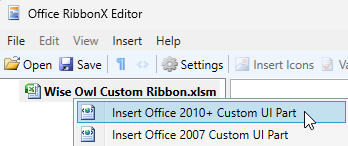
Unless you're using a very old version of Excel, choose Insert Office 2010+ Custom UI Part.
You can now open the custom user interface file that you've just created by double-clicking it.
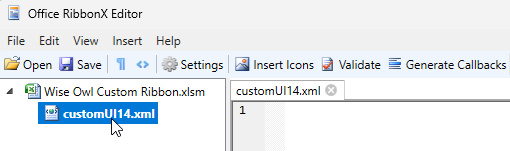
Double-click the customUI14.xml file to open it in the main window of the application.
Now we're ready to edit the XML to create a custom user interface.
Editing the XML for a Custom User Interface
While you could hand-code the entire XML file from scratch, it's much more convenient to insert some sample code to get started. To do this, from the menu choose Insert | Sample XML | Custom Tab.
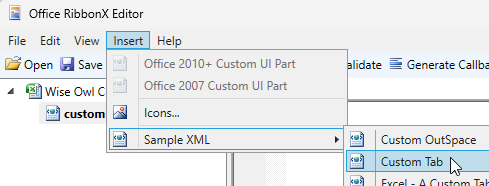
Choose this option to create some simple sample code.
The sample code generated will create a single custom ribbon tab, containing a single group, with a single button.
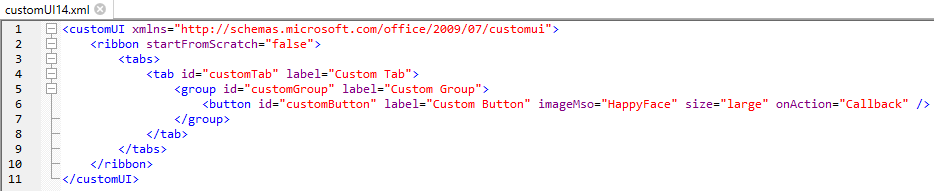
The XML code consists of a set of nested tags (e.g. tab, group, button), each of which has a set of attributes (e.g. id, label, imageMso).
Obviously, the code could use some tweaking! The most important thing to change is the name of the subroutine you want to run when you click the button. To do this, change the value of the onAction attribute of the button tag from "Callback" to the name of the subroutine you want to run. Here's what the code should look like:

We've changed the onAction attribute to "Insert_Owl_Sheet".
We could make further changes to the ribbon's appearance but it's probably worth testing that what we've done works.
Testing the Custom Ribbon
To test that our custom ribbon works, save the file in the Office RibbonX Editor.
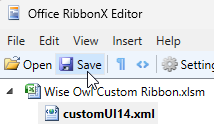
Click Save to save the file.
Close down the file in the Office RibbonX Editor and then open the file in Excel. If everything works correctly, you should find your new custom tab in the ribbon.
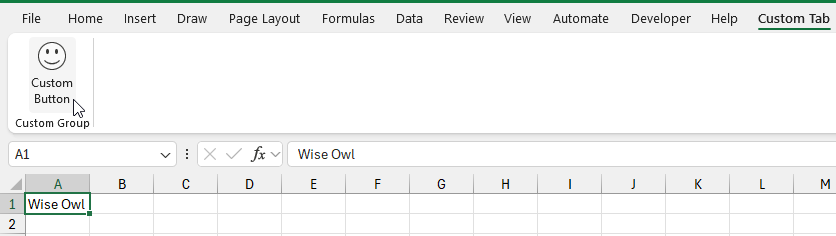
Click the button to run the subroutine.
Success! Now let's make our custom ribbon look better.
Improving the Appearance
Close the file in Excel and reopen it in the Office RibbonX Editor. You may then need to double-click the customUI14.xml file to reopen it.
Let's start by editing the text which appears on each element of the ribbon. To do this, modify the label attribute of the tab, group, and button tags.

We've changed the tab's label to "Wise Owl", the group's label to "Owl Tools" and the button's label to "Insert Owl Sheet".
Next, let's customise the image on the button. We'll first need to import the image we want to use. To do this you can either click Insert Icons in the toolbar, or right-click the XML file and choose Insert Icons...
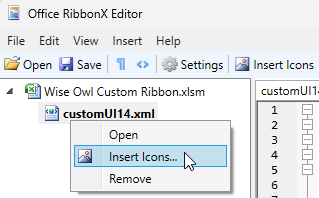
Choose the option shown here to import images.
Select the image(s) you want to import and click Open.
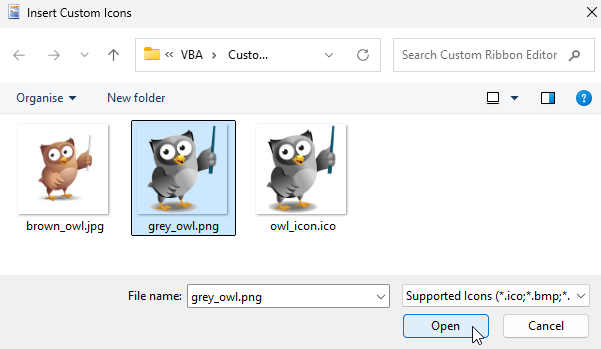
You can use a range of standard image file types.
The image will appear in the left panel of the Office RibbonX Editor.
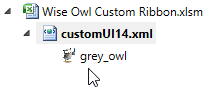
Each image you import will appear in this part of the screen.
Currently, our button has an imageMso attribute which allows you to refer to a predefined set of Microsoft Office images. To assign our custom image to the button we need to replace the imageMso attribute with the image attribute. Change the code so that it looks like this:

We've changed imageMso="HappyFace" to image="grey_owl".
If you want to see the full range of predefined Microsoft Office images you can download this add-in for Microsoft Word.
If we save and close the file in the Office RibbonX Editor and open it in Excel, this is what we should see:

Our fully customised ribbon.
Adding More Controls
Now that you know the basics, you can continue adding controls to your custom ribbon by adding more tags to the XML in the Office RibbonX Editor. Make sure to make the id attribute of each tag unique.
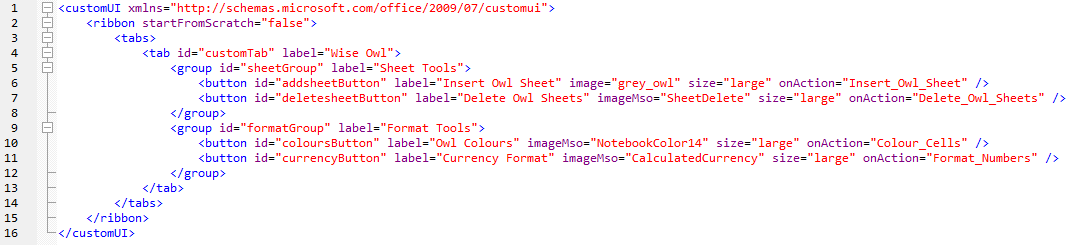
We've added an extra group and several new buttons, each of which has a unique id attribute.
To see the results, save and close the file in the Office RibbonX Editor and then open it in Excel.

The results of our hard work!
You can read more detailed information and see lots of examples of customising the ribbon in this Microsoft article.