Read our blogs, tips and tutorials
Try our exercises or test your skills
Watch our tutorial videos
Catch up on one of our webinars
Take a self-paced course
Read our recent newsletters
License our courseware
Book expert consultancy
Buy our publications
Get help in using our site
394 attributed reviews in the last 3 years
Refreshingly small course sizes
Outstandingly good courseware
Whizzy online classrooms
Wise Owl trainers only (no freelancers)
Almost no cancellations
We have genuine integrity
We invoice after training
Review 30+ years of Wise Owl
View our top 100 clients
Search our website
We also send out useful tips in a monthly email newsletter ...

Some other pages relevant to this blog include:
You can also book hourly online consultancy for your time zone with one of our 7 expert trainers!
| The new Theme pane in Power BI |
|---|
| The August 2026 update for Power BI introduces a new way to work with report themes. This blog provides an overview of how to work with themes in the new Theme pane. |
In this blog
Creating a theme is a great way to save time when formatting your Power BI reports. The August 2026 update to Power BI introduces a new way to work with themes in the form of the Theme pane.
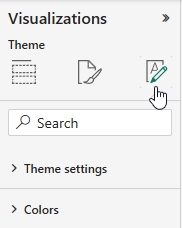
To view the Theme pane, make sure you have no visualisations selected in your report, then click the third button at the top of the Visualizations pane.

The Theme option appears when you have no visuals selected.
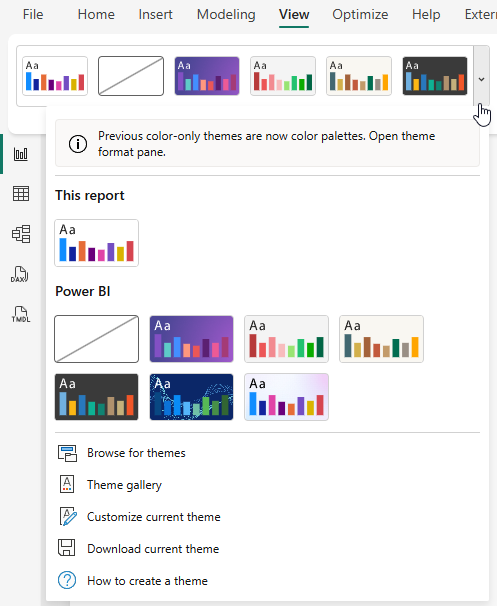
You can still access themes from the View tab in the ribbon, but the available options are somewhat reduced compared to previous versions of Power BI.

Click the arrow next to the Themes gallery to see the limited options. You can choose Customize current theme to open the Theme pane.
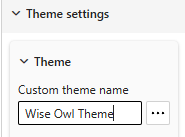
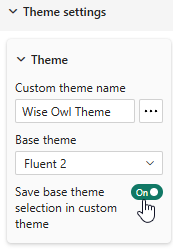
If you want to create your own custom theme, the first thing you'll want to do is give it a name.

Enter a name for your theme in the Custom theme name box.
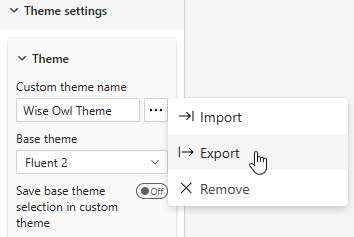
You can save your theme at any point by choosing to export it, as shown below.

Click the ... button and choose Export to save your theme.
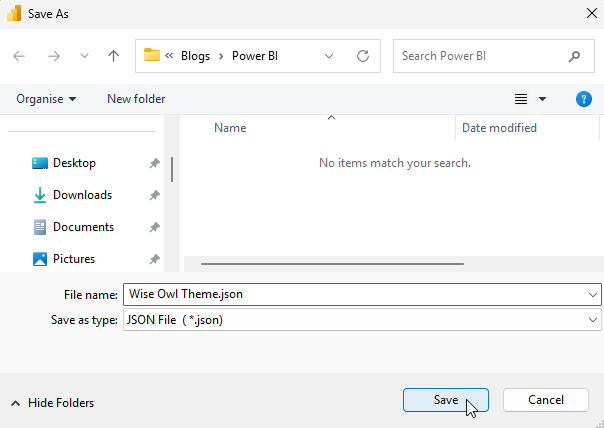
In the dialog box which appears, choose a location to save the theme.

Your theme will be saved as a json file.
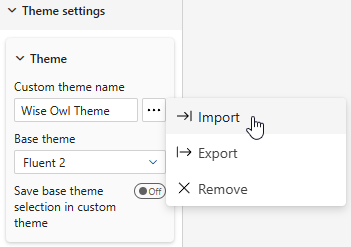
You can load a previously saved theme by choosing to import it.

Choose Import from the menu then browse for the theme you want to load.
The August 2026 Power BI update also introduces a new default theme that will be applied to new reports you create called Fluent 2 (and no, we don't know what happened to Fluent 1 either).
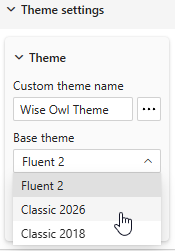
If you'd prefer to use one of Power BI's older base themes, you can select one from the Base theme drop down list.

I'm not sure that any of Power BI's themes can be described as "classic"!
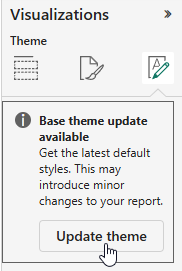
Microsoft are apparently so proud of their new default theme that, if you choose a different one, you will be offered the opportunity to switch it back immediately!

Click the button which appears to revert to the Fluent 2 theme.
You can choose whether to include the choice of base theme in your custom theme

Toggle this option on to save the base theme in your custom theme.
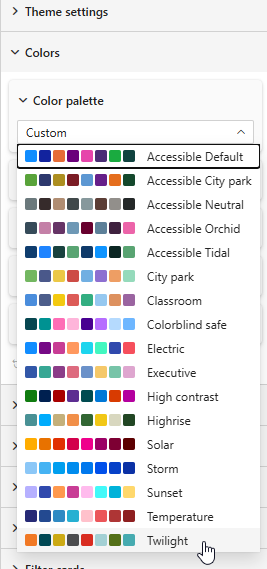
Most of Power BI's older themes have been reduced to a selection of palettes which affect the theme colours. You can choose a different palette as shown below:

Choose this option if the target audience for your report is a group of whiny emo-vampires.
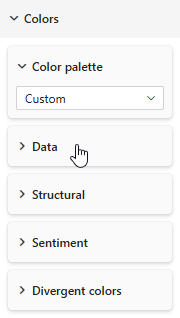
If you need to use your own brand colours (or you simply don't like any of the default palettes) you can customise the colours for different elements of your report.

You can expand each of the Data, Structural, Sentiment and Divergent colors sections to pick specific colours.
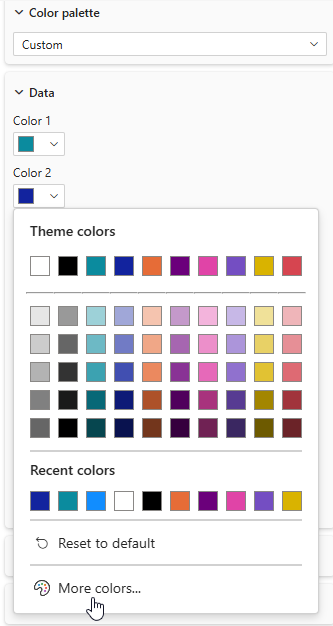
After expanding one of the sections shown above, you can proceed to select your custom colours. In the example below, we're selecting colours for the Data elements of a report.

Click the drop arrow next to each colour then click More colors... to specify a colour.
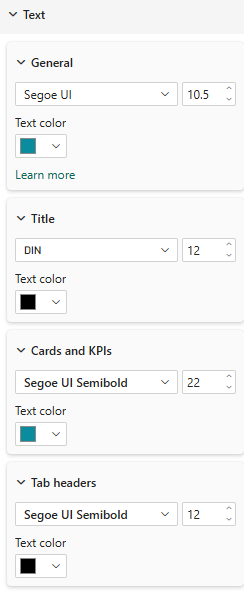
In the Text section you can customise fonts, font size and colours for various elements of a report.

Expand each section to see the options for customising text in different areas of a report.
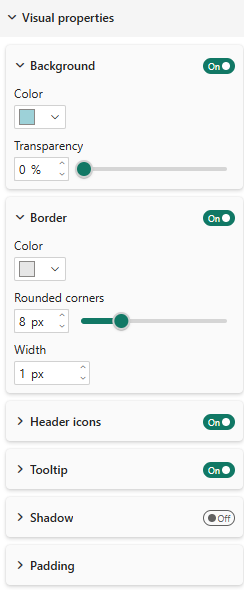
You can customise a range of default settings for visualisations in the Visual properties section, including background, border and shadow effects.

You can toggle each element and customise their individual properties.
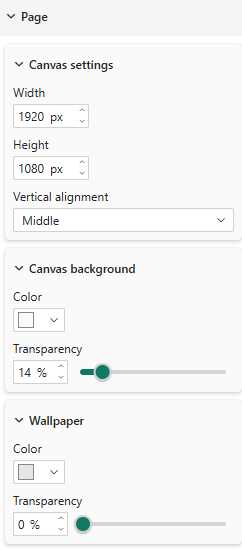
You can customise both the size and colours of the report page in the Page section.

Sadly, you still can't choose to upload a custom image for the canvas background.
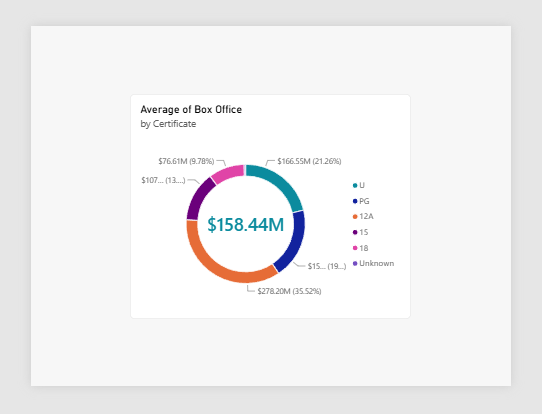
For reference: the Canvas is the area on which you place your visuals; the Wallpaper is the area on which the canvas sits.

This donut chart visual sits on the pale grey canvas; the canvas sits on the dark grey wallpaper.
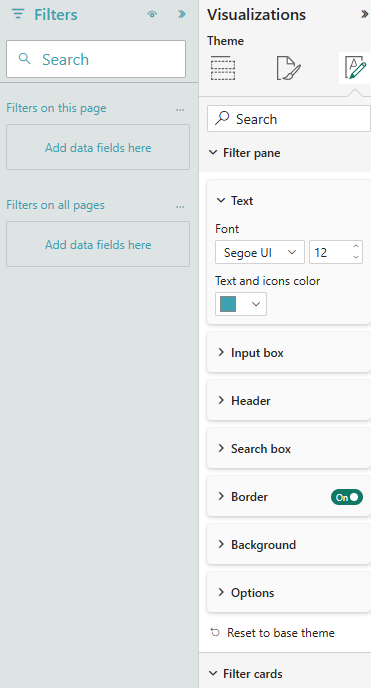
The final two sections of the Theme pane allow you to format the Filters pane.

There are many options in the Filter pane and Filter cards sections.
Some other pages relevant to this blog include:
You can also book hourly online consultancy for your time zone with one of our 7 expert trainers!
Kingsmoor House
Railway Street
GLOSSOP
SK13 2AA
Elementa Workspace
6 Bevis Marks
LONDON
EC3A 7BA
c/o Holiday Inn
25 Aytoun Street
MANCHESTER
M1 3AE
© Wise Owl Business Solutions Ltd 2026. All Rights Reserved.