Excel's September 2026 update introduces the ability to store multiple values in a single cell. This may not sound like the most exciting thing to happen to Excel but it could have big implications for the way you work with related values, as this blog shows!
The old-fashioned way of storing multiple values
By way of an example, imagine you wanted to store the genres for a list of films. Each film could belong to multiple genres, so what's the best way to store this information?
One option is to have a separate column for each genre, as shown below:
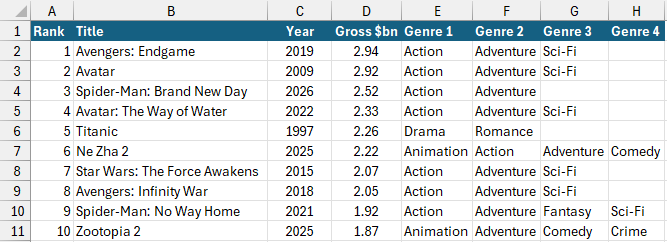
Database developers will be looking at this in abject horror.
There are several problems with this option: it occupies a lot of horizontal space; each film belongs to a different number of genres so some columns contain empty cells; the same genre may appear in different columns for different films making it difficult to filter the list; we may need to add more columns later for new films which belong to even more genres.
An alternative is to store every genre for a single film in a comma-separated string in a single cell:
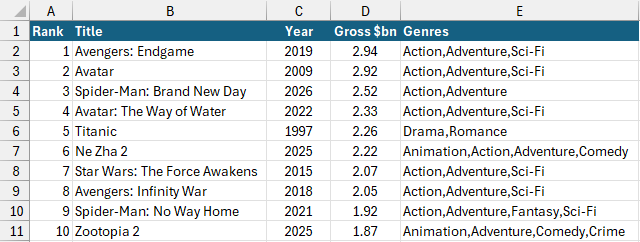
It's an improvement, but still not perfect.
While this option is neater, it's still awkward to filter the list because we can't treat each genre individually.
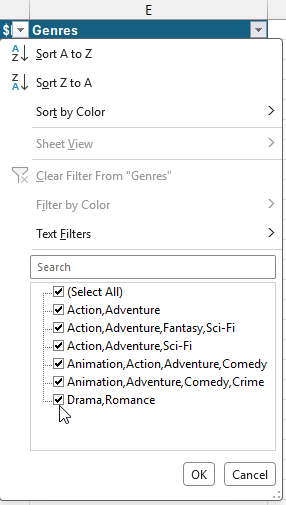
We can choose each combination of genres, but not an individual one.
The new way to store multiple values
What we really need is a way to store multiple values in a single cell but retain the ability to treat each value individually. Enter the new Excel List feature! In the example below, each cell contains a separate list of individual genres:
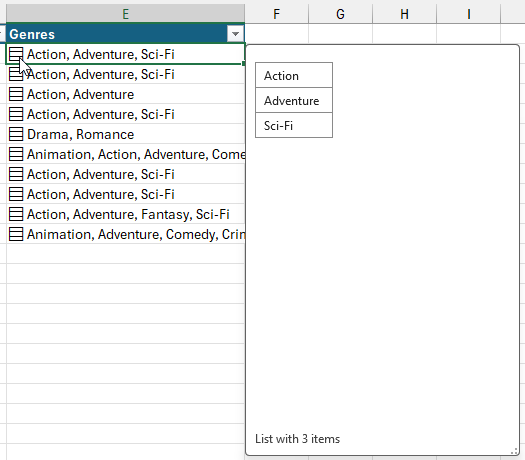
You can click the icon on the left of the cell to see the individual list items.
While the appearance of each cell hasn't changed much, they way they behave is significantly different. Here's what happens if I choose to filter the column by the list items:
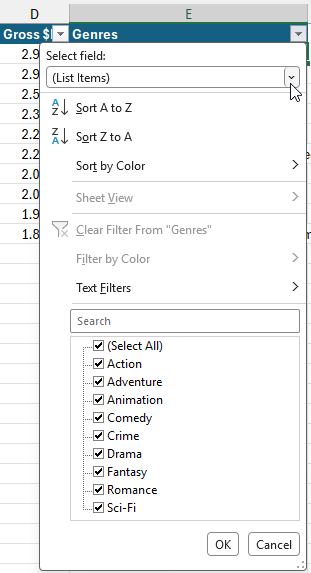
Choosing (List Items) at the top of the filter allows me to pick each genre individually.
Now that you've seen how useful a list can be, let's look at how to create one!
Workbook compatibility versions
The features covered from this point onwards require the workbook to use compatibility version 3. You can check and change the compatibility version of your workbook by choosing Formulas | Calculation | Compatibility Version from the ribbon.
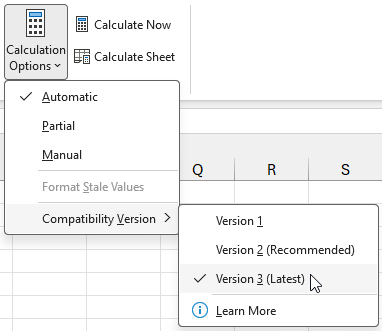
If you can't choose Version 3 (Latest) you may need to change your update channel to the Insiders Beta channel.
Creating a List
If you already have a comma-separated string of values in a cell, you can easily convert it into a list of individual values. To do this, select the cell(s) and from the ribbon choose Insert | List or press Ctrl + J on the keyboard.
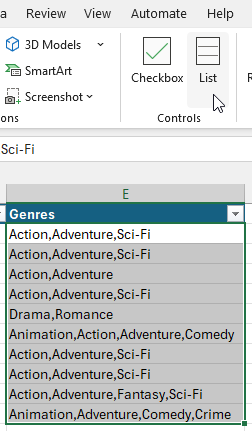
We're converting our existing comma-separated strings into lists.
Each cell which contains a list of values displays the list symbol on the left. You can click the list symbol to display the individual values.
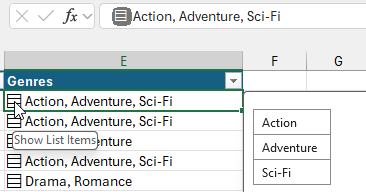
The list symbol also appears in the formula bar.
You can change the list back into a comma-separated string by selecting the cell and choosing Insert | List from the ribbon or by pressing Ctrl + J on the keyboard.
If you don't have an existing comma-separated string to convert into a list, you can enter your list values manually. To do this, select an empty cell and from the ribbon choose Insert | List or press Ctrl + J on the keyboard.
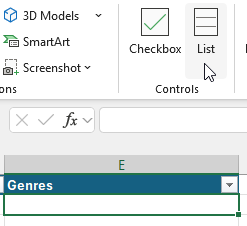
Select an empty cell and choose Insert | List from the ribbon.
You can then type in your list of values, separating each one with a comma.
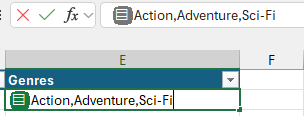
Write your comma-separated list of values into the cell or the formula bar.
Press Enter to finish entering the list in the cell.
You can edit a list of values in a cell in the same way you would edit any cell value: double-click the cell, or select it and press F2.
Referencing a list in a formula
When you reference a cell containing a list in a formula, Excel returns an array of values. If the only thing your formula does is reference a cell containing a list, the returned array spills into the neighbouring cells (you can learn more about spilled arrays in this blog and video).
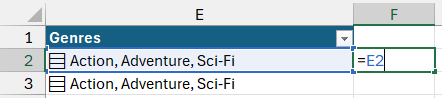
Here we're referring to cell E2 which contains a list of values.
The result of the formula above is a spilled array of values.
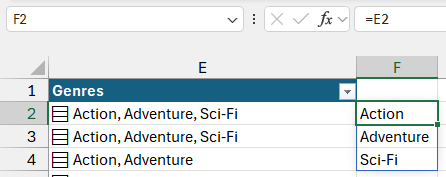
The three list values spill into the neighbouring cells.
You can pass a list into functions which accept arrays of values, such as the SORT function. In the example below we're sorting the genres in descending order:
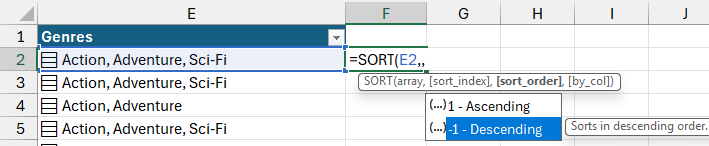
The third parameter of the SORT function allows you to change the sort order.
You can see the result of the formula below:
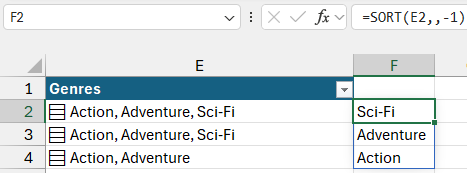
The results are spilled in descending order.
You can also pass a list to functions which return a single result. The example below uses the COUNTA function to count how many genres each film belongs to:
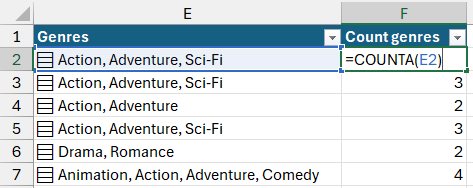
Each formula returns the count of genres for a single list.
Arrays in cells
The new list feature is part of a wider set of changes to the way Excel treats arrays. Previously, formulas which returned spilled arrays always occupied neighbouring cells. You can now return the results of spilled array to a list in a single cell by wrapping the formula in braces (curly brackets). You can see a basic example of this below:
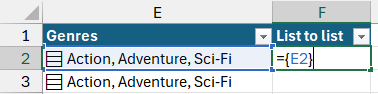
Wrapping a set of braces around the reference to the list changes the way Excel returns the results.
Rather than spilling the resulting array into multiple cells, Excel returns the array to a list in a single cell:
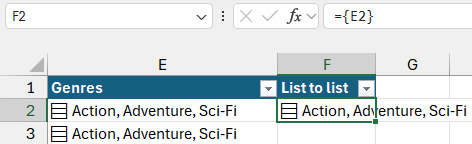
We get a copy of the list in a single cell, rather than spilled to three separate cells.
The above example isn't particularly useful other than to demonstrate how to return an array to a single cell, but the same principle applies to more complex examples. Below, we're using the FILTER function to return films released after the year 2020.
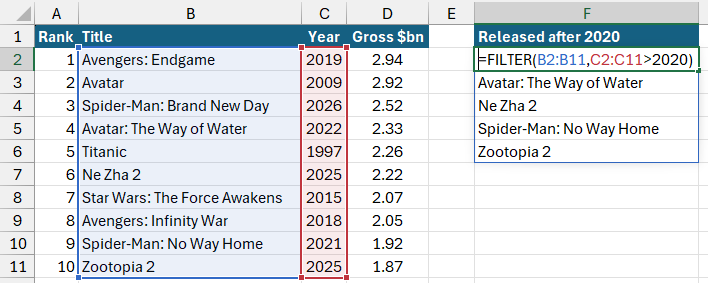
The array returned by the FILTER function spills into neighbouring cells.
To return the results to a single cell in the form of a list, you can wrap a set of braces around the formula:

Add the braces around the formula after the = sign.
The results are now returned to a single cell:

The array is returned to a list stored in a single cell.
Testing list contents
Along with the new behaviour of arrays, Excel has some new functions to make it easier to work with arrays in cells. The HAS, HASALL and HASANY functions allow you to test if a list contains items you specify.

HAS tests if a single value exists in the array. HASALL tests if all values exist. HASANY tests if any one of the listed values exists.
Note the use of braces to pass an array of values to the HASALL and HASANY functions.
You can see the results of the formulas copied to each row of the table in the diagram below:
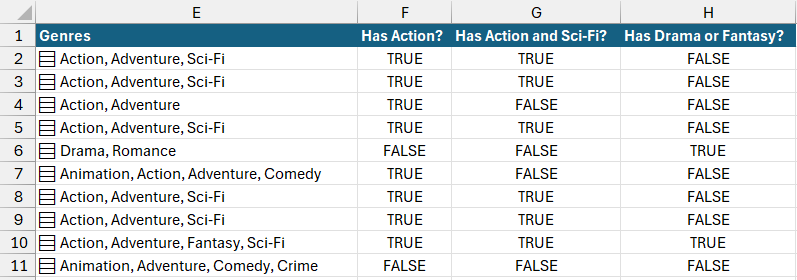
The results of the three functions.
Flattening arrays
The final new function is called FLATTEN and allows you to separate an array of arrays into individual values. As an example, let's say we wanted to split multiple comma-separated strings into individual cells. We can use the TEXTSPLIT function to perform the initial split:
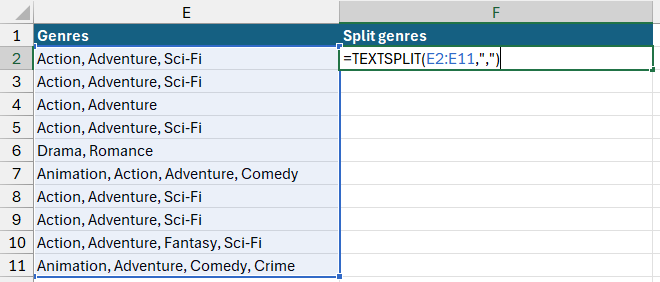
We're using the TEXTSPLIT function to split each of the comma-separated strings.
With the new behaviour of arrays in Excel, the result is a spilled array of lists, one for each cell in the range.
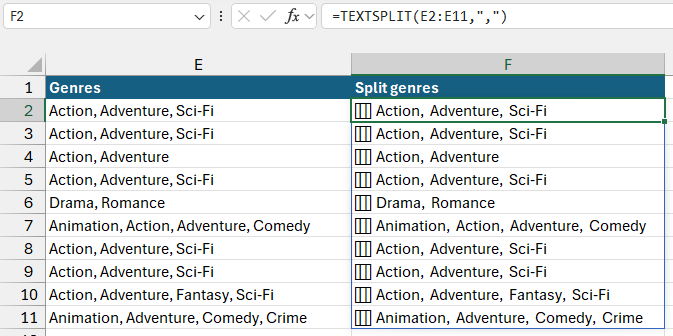
The result is an array of arrays, or a nested array.
The FLATTEN function allows you to remove one level of nesting from an array of arrays. We can pass the results of the TEXTSPLIT function to the FLATTEN function to split each list into separate cells.

We're using the pad_value parameter of the FLATTEN function to display an empty string if there is no genre to display.
The result is a spilled array where each genre occupies a separate cell:
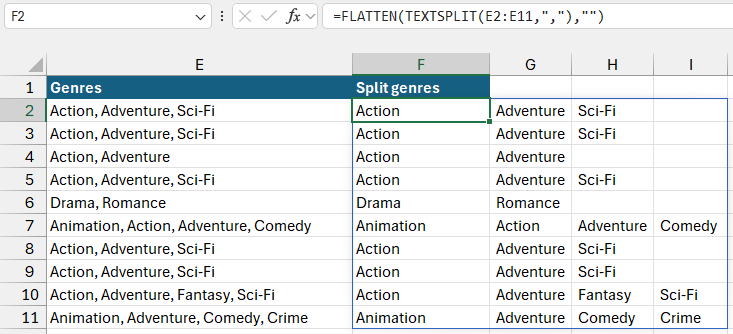
Each genre occupies a separate cell.