Read our blogs, tips and tutorials
Try our exercises or test your skills
Watch our tutorial videos
Catch up on one of our webinars
Take a self-paced course
Read our recent newsletters
License our courseware
Book expert consultancy
Buy our publications
Get help in using our site
353 attributed reviews in the last 3 years
Refreshingly small course sizes
Outstandingly good courseware
Whizzy online classrooms
Wise Owl trainers only (no freelancers)
Almost no cancellations
We have genuine integrity
We invoice after training
Review 30+ years of Wise Owl
View our top 100 clients
Search our website
We also send out useful tips in a monthly email newsletter ...

You can find other training resources for the subject of this exercise here:
You can also book hourly online consultancy for your time zone with one of our 7 expert trainers!
| Software ==> | Copilot Studio Agents (6 exercises) |
| Topic ==> | Topics (3 exercises) |
| Level ==> | Relatively easy |
| Subject ==> | Artificial Intelligence training |
This exercise is provided to allow potential course delegates to choose the correct Wise Owl Microsoft training course, and may not be reproduced in whole or in part in any format without the prior written consent of Wise Owl.
The aim of this exercise is to create an agent to provide information on your company's products and services, which handles irrelevant questions gracefully.
While this is a long exercise you should find it relatively easy to complete provided that you follow the instructions as they are given!
This exercise will use Wise Owl Training as an example company - unsurprisingly - but you should substitute your own company website and logo.

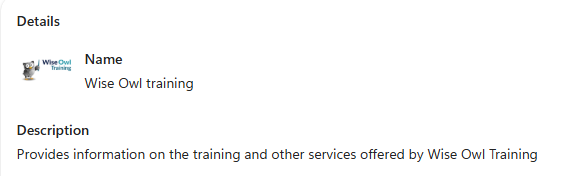
This icon is in the above folder.
Provide short instructions (it's always good to stop agents being verbose!):
Provide support for people looking for information about this company's products and services. Restrict all answers to a maximum of 50 words at most.
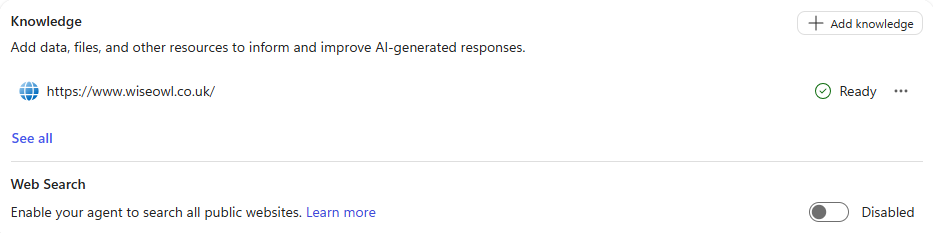
Let your agent look at your company's website as knowledge, but nowhere else:

Disabled general website searching.
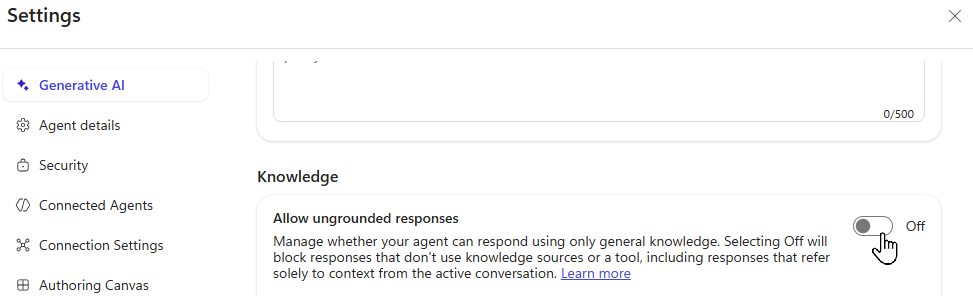
Your agent will still try to search the web, despite the above, so go into the agent's settings and disabled ungrounded responses:

You'll need to scroll down to find the Knowledge settings.
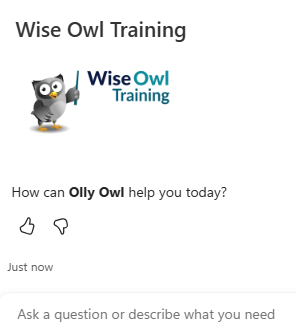
When a conversation starts, get the relevant system topic to display an adaptive card and a separate message, like this:

You can find the URL for this image in the text file in the folder at the start of this exercise.
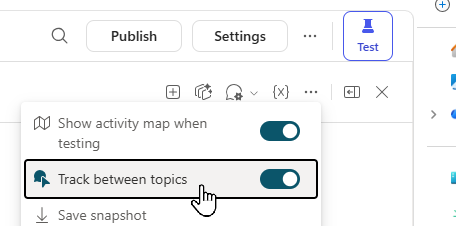
Before you test your agent, turn tracking between topics on so that you can see which topics your agent is invoking:

Enable this option.
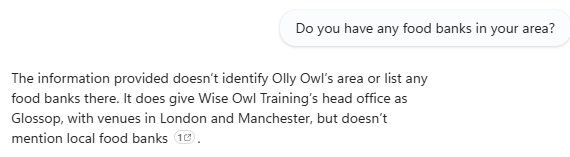
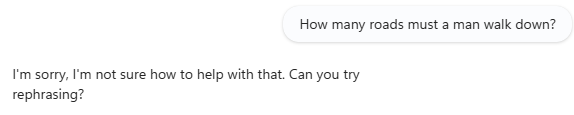
Test your agent, and type in a relevant question and then an irrelevant one:

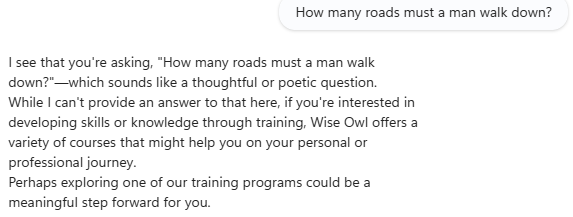
You should see when you type an irrelevant question like this that your agent is still trying to answer it, using a system topic.
Disable the system topic which your agent is invoking to try to handle irrelevant questions, and test it again: this time you should see that the agent (finally) goes to the Fallback system topic:

The default behaviour of the fallback topic.
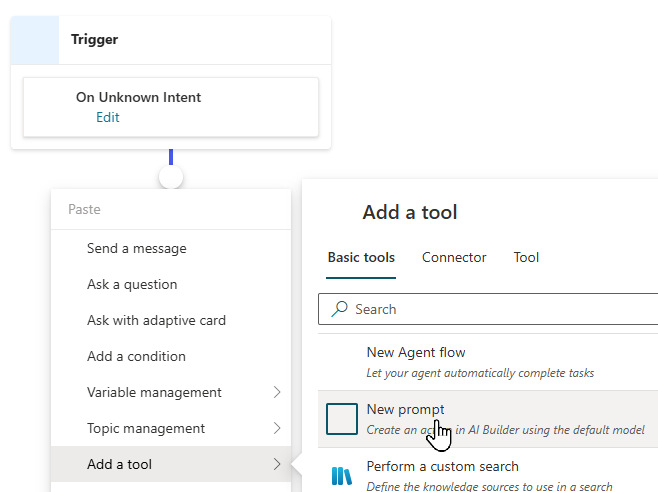
Go to the fallback topic. Delete all of its nodes apart from the start trigger, then add in a Prompt node:

The menu for adding a prompt node.
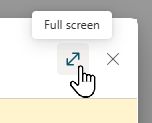
Choose to show your prompt node in full screen, to give yourself more space:

Click on the icon at the top right of your prompt to show it in full screen mode.
Type in a variation of the prompt in the relevant text file included in the folder shown at the start of this exercise, adding a single bit of text content at the end (call this QuestionAsked, and supply a suitable sample irrelevant question which a user might ask).
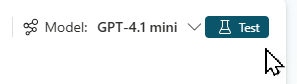
Click on the test button to see if your prompt is generating the right sort of response:

Keep testing your prompt until you're happy it's working in the way you want.
Save and close your prompt. You now need to provide input to it:

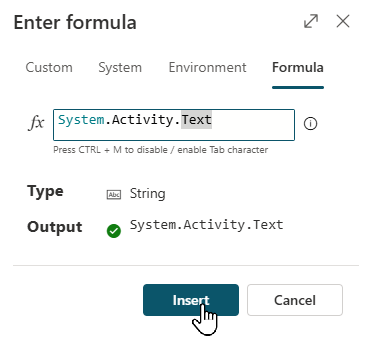
Tell the prompt to take its input from the system activity (that is, what the user has just asked).
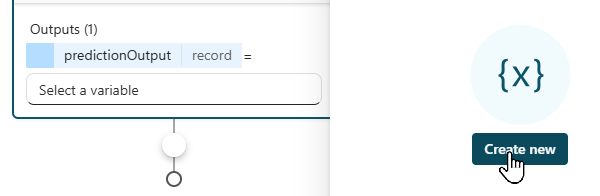
For the output from the prompt, create a new variable:

Choose to create a variable to hold the output message, then rename this from var1 to varResponse.
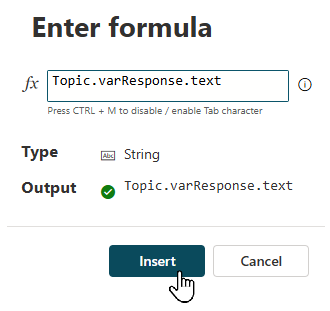
Finally, add a Message node to display the text part of the response returned from your prompt (and now held in the varResponse variable), then add an End All Topics message:

What your message should show.
Test your agent to see if it reacts equally well to relevant and irrelevant questions!

Not bad!
Return to the Copilot Studio home screen, with a sigh of satisfaction ...
You can find other training resources for the subject of this exercise here:
You can also book hourly online consultancy for your time zone with one of our 7 expert trainers!
Kingsmoor House
Railway Street
GLOSSOP
SK13 2AA
Elementa Workspace
6 Bevis Marks
LONDON
EC3A 7BA
c/o Holiday Inn
25 Aytoun Street
MANCHESTER
M1 3AE
© Wise Owl Business Solutions Ltd 2026. Registered in England and Wales: company number 05110386.