This blog explains how I - eventually - managed to enable the creation of Copilot Studio Agents on a set of 365 accounts, so that we can create (and give) our new three-day Copilot Studio Agents course. I hope that someone finds it useful; I wish I'd been able to read it before I began this journey!
Setting the scene
For our 365 training courses we have a number of delegate accounts, each of which we like to be completely independent, so my aim was to enable the following users to be able to create and run Copilot Studio agents:
Number | User |
|---|
1 | Delegate61 |
2 | Delegate62 |
3 | Delegate63 |
4 | Delegate64 |
5 | Delegate65 |
6 | Delegate66 |
7 | Delegate67 |
We collectively know these users as the 60s (for obvious reasons), although they also belong to our Alice in Wonderland laptop set (for less obvious reasons).
The plan
Following long debates with ChatGPT, we appeared to have two alternative ways to proceed:
Buy a Copilot Studio monthly usage licence, and allocate the 7 delegate accounts to this.
Set up a pay-as-you-go Azure account, and charge any delegate usage to this.
Because the delegate accounts will only be used during training courses - and then only intermittently - the second option seemed a far more sensible choice. And it sounds so easy, doesn't it?
Logging on to Azure
This should have been easy, but in Edge try as I might I couldn't get it to log off from my 365 account and log on with my admin user account instead. In the end I gave up and decided to do all my admin changes in Chrome instead.
For everything that follows you'll need to have admin access to your 365 account. I got the other Wise Owl Andrew (who set our 365 accounts up) to add me as an admin user.
Creating an Azure account
You can't bill anything to a pay-as-you-go Azure account unless it exists, so the first thing we did was to set this up:
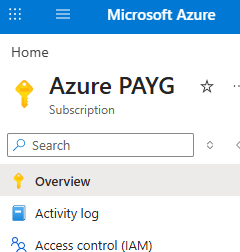
This was the only thing I didn't do, but it seemed fairly straightforward. You'll have to tie it to a bank card, sadly.
Creating an Entra security group
The next thing to do is to create a security group holding people who will have the right to bill Copilot Studio usage to the Azure pay-as-you-go account. Start by going to Entra admin:
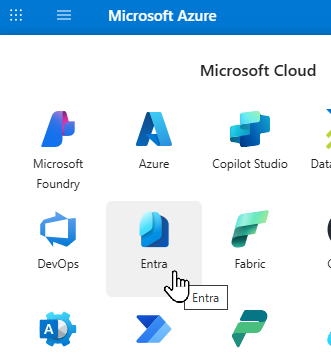
The top-left waffle is your friend, for moving between parts of 365 admin.
Create a new group:
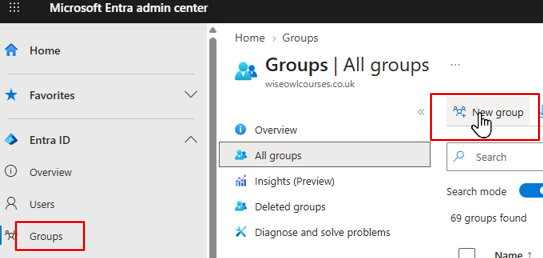
Choose the options shown above to create a new group.
I created a group called Wise Owl Copilot studio authors, and assigned my 7 delegate users to it:
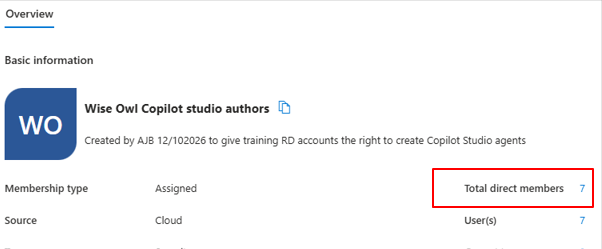
I haven't shown how to do this, but it's pretty obvious.
Assigning the security group to be authors
The next rather strange thing you need to to is to find the pre-defined Power Platform group called Copilot Studio pay-as-you-go users, and assign the Entra security group that you've created to this. First go to Power Platform admin:
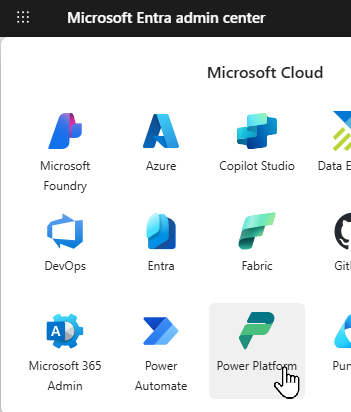
The waffle is still your friend.
Choose the following options to go to tenant settings:
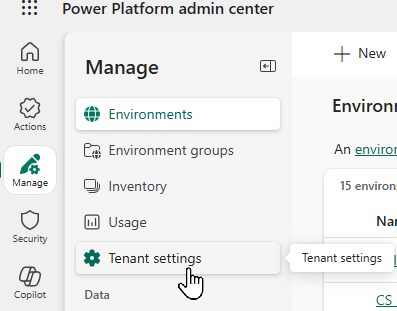
The option shown is on the Manage menu.
Find this group:
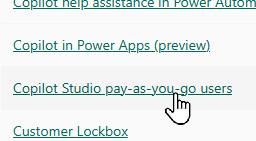
The tenant settings you need to change.
Now click on this and assign the Wise Owl Copilot studio authors that you created previously to this:
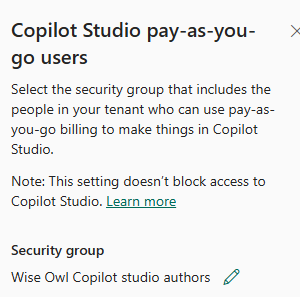
I can't show this, because it's already done, but it was straightforward.
Creating a billing plan
So we now have a group of people who are authorised to use Copilot on a pay-as-you-go basis, but sadly there's more (so much more) to do. To get this to work we'll need to create a special sandbox environment for each of our 7 users, but (as I discovered) you can't do this unless you can choose a billing plan for each. So let's go to the billing plans section of the Power Platform admin centre:
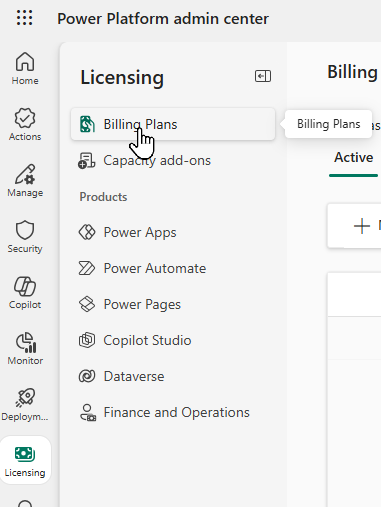
Click on Licensing on the left, then on Billing Plans.
You can now add a billing plan, assigning an Azure account and resource group to it:
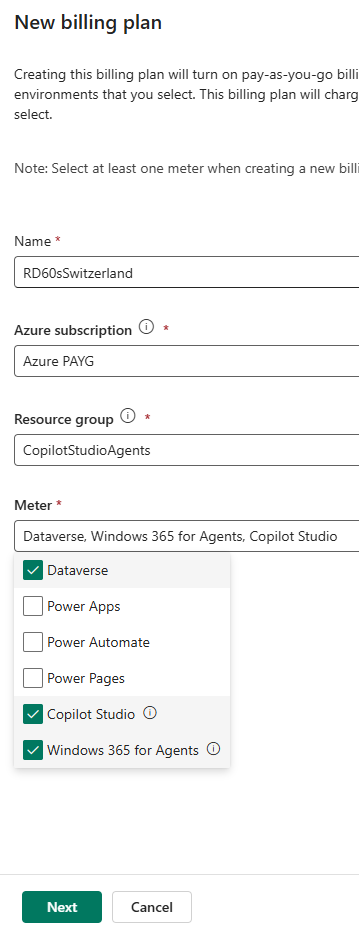
You don't want the billing plan to cover Power Apps and Power Automate because these should be covered under the normal 365 licence. When you tick Copilot Studio the Windows 365 for Agents box is automatically ticked too.
You may be wondering why I called my billing plan Rd60sSwitzerland. Read on to find out!
Select an environment:
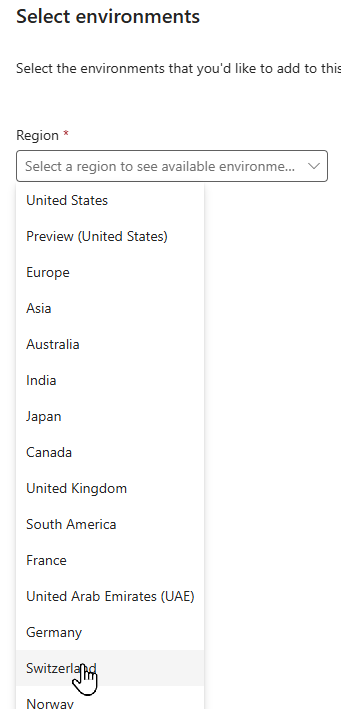
This was my second pass at this. The first time I chose United Kingdom. I'll explain why I've switched the billing plan to Switzerland later in this blog, but at least you know now why I called the billing plan RD60sSwitzerland.
Creating sandbox environments
I now needed to create a sandbox environment for each delegate. I started in the Power Platform admin centre:
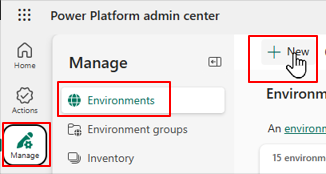
The steps to creating a new environment.
So I now want to choose the UK region, but I can't. The most specific I can get is Europe & UK, so I chose that:
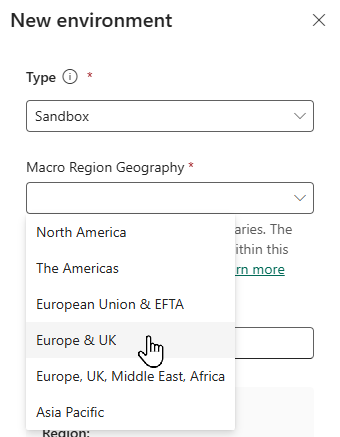
Microsoft will now decide where in this region to store this environment!
I can now specify a few other details about my new environment:
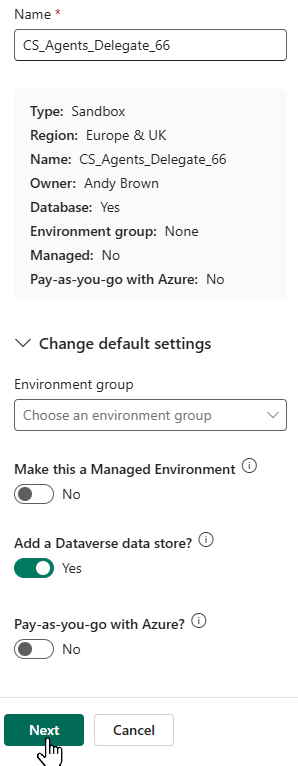
I may need to use Dataverse, but I'll allocate this environment to a pay-as-you-go Azure account in a bit.
It took me a while to realise that you then have to click on the Select security option and choose None:
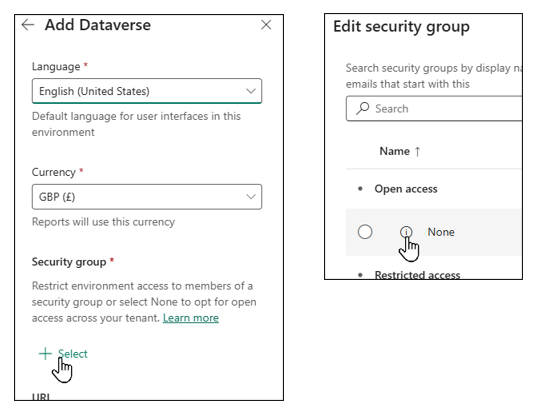
The combination of options you'll need to choose.
Noting down the region used
If you now look at your environments you'll be able to see in which region they've been created:
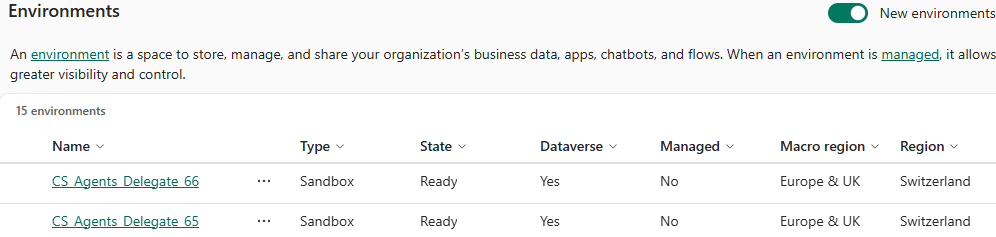
I chose Europe & UK, and got Switzerland. And so the above mystery is explained!
The environment has to be in the same region as the billing plan for pay-as-you-go billing to work, as I discovered painfully!
Hitting the Dataverse capacity limit
Every time you create an environment Microsoft must create a Dataverse database to manage it. Although 365 payment plans include capacity for this for development environments, not so for sandbox ones, so you may see this message:
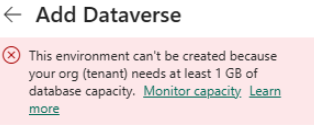
A sign that you need to pay more money to Microsoft.
The first time I tried this I couldn't add any environments, but I've now managed to add 5 before hitting this limit after doing a bit of housekeeping. This will do us for now.
I think the monthly cost of the extra Dataverse capacity is only about $20, but I'd prefer not to pay this on top of all of the 365 accounts we already maintain.
I then went back to my billing plan and assigned my 7 environments to it.
Attaching each user to their environment
I now went through each environment adding the relevant role to it. First show the settings for each environment:
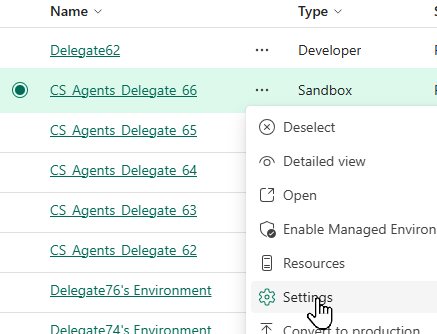
Click on the 3 dots to the right of each environment to change its settings.
Choose security roles:
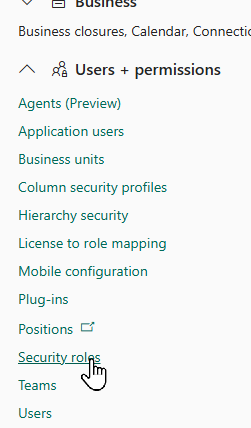
Choose this option.
Enable the Environment Maker security role for this environment:
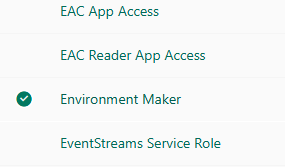
This is sufficient to give agent authoring rights.
Switching environments
If I now log into Copilot as one of the delegate 6x users, I can change environment:
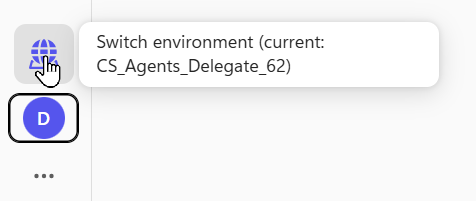
I can click on this symbol at the bottom left corner of Copilot to switch to the sandbox environment.
This means I can now create and run Copilot Studio agents! Halleulah!
Even after all this I often get a warning that I'm using a premium feature, so won't be able to create my agent, but ChatGPT and I have eventually come to the conclusion that this is a bug: you can still publish and run the agent despite the warning.