Microsoft training courses | Wise Owl - home page

Phone (01457) 858877 or email

ADDING DATA LABELS TO A CHART USING VBA

Part one of a five-part series of blogs

Adding basic data labels to a chart can be done without using any programming code. This blog, however, shows you how to fine-tune Excel chart labels using VBA (Visual Basic for Applications) macros.

  1. The Problem With Labelling the Data Points in an Excel Scatter Chart (this article)
  2. Setting Up the example for labelling data points in a chart
  3. Using VBA in Excel to Modify Charts
  4. Adding Data Labels to a Chart Using VBA Loops
  5. Improving the VBA system for chart data labels
Posted by Andrew Gould on 08 June 2011 | 7 comments

The Problem With Labelling the Data Points in an Excel Scatter Chart

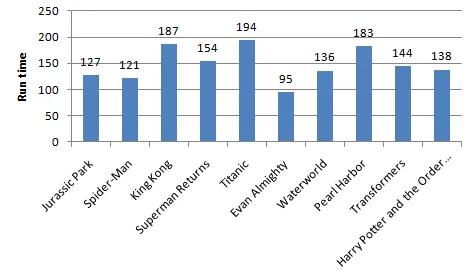
Labelling the data points in an Excel chart is a useful way to see precise data about the values of the underlying data alongside the graph itself.  In a column chart, for instance, you might show the value of the data point at the top of a column.

Example of a column chart

A useful addition to a column chart is a set of data labels showing the value of each column.

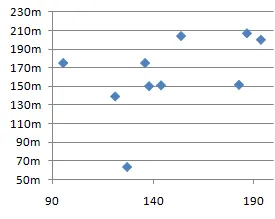
In certain types of charts, for instance scatter charts or bubble charts, the most useful way to label the data points is apparently impossible to achieve!

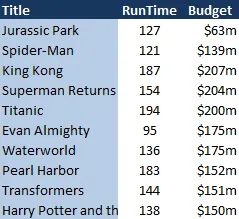
We can plot the Run Time against the Budget... ...but we can't show the Film Titles in the chart!

The only three options you have when adding a data series to a scatter chart or bubble chart are:

  • The value of the X axis (the Run Time value in the above example).
  • The value of the Y axis (the Budget value in the above example).
  • The name of the data series (the word "Budget" in the above example).

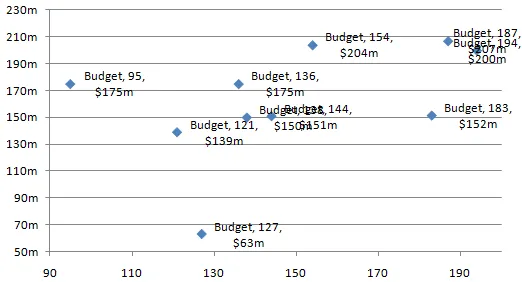
If you choose to show all three options, the resulting chart looks something like this:

A messy chart

It's messy, difficult to read, and it's not even the information we want to see!

There are two ways to get the Film Title in the data labels:

  • Identify which data point represents which film and then manually type in the film title.  Seriously!
  • Use a bit of VBA magic to automatically label each data point with the click of a single button.

Guess which method we're going to describe in part 2 of this series?!

ADDING DATA LABELS TO A CHART USING VBA

Part one of a five-part series of blogs

Adding basic data labels to a chart can be done without using any programming code. This blog, however, shows you how to fine-tune Excel chart labels using VBA (Visual Basic for Applications) macros.

  1. The Problem With Labelling the Data Points in an Excel Scatter Chart (this article)
  2. Setting Up the example for labelling data points in a chart
  3. Using VBA in Excel to Modify Charts
  4. Adding Data Labels to a Chart Using VBA Loops
  5. Improving the VBA system for chart data labels

Comments on this blog

This blog has 7 comments:

Comment added by manzarek on 21 May 2012 at 13:02 GMT

Hi, thank you for your post it was very helpfull but i have some problem with multiple series in the same chart.

Can you please post code and explain how you add labels for multiple series?

//Thank you

Reply from Andrew Gould (blog author)
I've posted a solution here!
 
Comment added by MCT on 03 September 2012 at 10:49 GMT

I don't agree with the way you're assigning chart labels on the assumption that the cells match the sequence of chart items. Can you guarantee that these two pieces of data are always going to be aligned that way.

Surely it's better to do something like this...

    For chartIterator = 1 To chartDataSeries.Points.Count
        chartDataSeries.Points(chartIterator).dataLabel.Text = Format(chartDataSeries.Values(chartIterator), "#0%")
    Next

This way the data series point label is populated from the same data series' values collection. I've used formatting here to display a percentage as this is what I want to show on this particular chart.

Reply from Andrew Gould (blog author)
I see what you mean, but that wouldn't work for this example because the names of the films aren't contained within any of the chart data series.  The two series in the chart are the Run Time and the Budget and we could display those as data labels without having to use VBA at all.  The only reason we're using VBA here is to label the chart with values that are stored in cells rather than in the chart itself.
 
Comment added by alexbell12 on 31 October 2012 at 10:44 GMT

Hi Andrew,

Extremely helpful.

What about for multiple series with different numbers of data points in the same graph?

 I.e. series 1 has 4 different films, series 2 has 3 etc..these each would therefore have different labels.

The column with the filmlist contains the labels in the right order to correspond with the data points in each series.

The solution you posted for multiple series seems to reset the counter for each series and go back to the top of the film list.

Do you know how to solve this?

Reply from Andrew Gould (blog author)

Hi Alex,


Thanks for the comment.  You’re right about the labels in my example repeating – the idea is that each film name has multiple data points associated with it, so you’d expect to see each film appear more than once.  The counter doesn’t actually reset however, and the list of films is looped over only once.  What happens is that for each film in the list, every data series in the chart is looped over and a single data point in each series is labelled.  So all the data points associated with one film are labelled before moving on to the next.


For your example it depends on exactly how you have your data arranged.  It sounds as though you have a list containing one column of names that you want to use as labels, next to one or more columns of values you’re using as data points.  Your single list is used to create multiple data series in the chart, with each series using a different number of rows from the list.


If that’s the case then we need to loop over the collection of cells containing the labels just once to add a label to each data point.  The problem you’ve got is knowing when you switch from one data series to the next.  One solution would be to keep track of the number of data points we’ve labelled and check to see if we’ve exceeded the number of data points in the current data series.  If that happens we can reset our counter and move on to the next data series.  We’ll also need to keep track of the number of data series we’ve labelled.  The code below should do the trick, assuming all of the above:

Sub CreateDataLabels()

    'variables for looping over chart objects
    Dim FilmChart As Chart
    Dim FilmDataSeries As Series
   
    'variables for looping over cells
    Dim SingleCell As Range
    Dim FilmList As Range
   
    'variable to keep track of number of films
    Dim FilmCounter As Integer
   
    'variable to keep track of number of series
    Dim SeriesCounter As Integer
   
    Set FilmList = Range("A2", "A11")
    Set FilmChart = ActiveSheet.ChartObjects(1).Chart
   
    'loop over each data series and enable data labels
    For Each FilmDataSeries In FilmChart.SeriesCollection
        FilmDataSeries.HasDataLabels = True
    Next FilmDataSeries
   
    FilmCounter = 1
    SeriesCounter = 1
   
    Set FilmDataSeries = FilmChart.SeriesCollection(SeriesCounter)
   
    'loop over each cell in the list of source data
    For Each SingleCell In FilmList
       
        'change the label text to be the film's name
        FilmDataSeries.Points(FilmCounter).DataLabel.Text = SingleCell.Value
       
        FilmCounter = FilmCounter + 1
       
        'if the FilmCounter is higher than the number of points in the series, reset the FilmCounter
        'move on to the next data series
        If FilmCounter > FilmDataSeries.Points.Count Then
            FilmCounter = 1
            SeriesCounter = SeriesCounter + 1
           
            'if we've exceeeded the number of data series in the chart then exit the loop
            If SeriesCounter > FilmChart.SeriesCollection.Count Then Exit For
           
            'if we're still in the loop, store a reference to the next data series
            Set FilmDataSeries = FilmChart.SeriesCollection(SeriesCounter)
           
        End If
       
    Next SingleCell
   
End Sub

 
Comment added by alexbell12 on 31 October 2012 at 14:48 GMT

Thx Andrew, you are a genius!

One last thing, to extend this to all charts in the sheet (assuming that the series and labels are the same), I assume I should insert:

"For Each SingleChart In ActiveSheet.ChartObjects" at the start of the macro and "Next SingleChart" at the end, would this be correct?


Reply from Andrew Gould (blog author)

Yep, that's pretty much it!  Don't forget to declare a new variable to hold each single chartobject as you process the loop.  You'll also want to grab a reference to the chart part of each chartobject as you go through the loop.  I've marked the NEW and EDITED lines with comments below:

Sub CreateDataLabels()

    Dim FilmChart As Chart
    Dim FilmDataSeries As Series
   
    '***NEW LINE***
    Dim SingleChartObject As ChartObject
   
    Dim SingleCell As Range
    Dim FilmList As Range
   
    Dim FilmCounter As Integer
    Dim SeriesCounter As Integer
   
    Set FilmList = Range("A2", "A11")
   
    '***NEW LINE***
    For Each SingleChartObject In ActiveSheet.ChartObjects
       
        '***EDITED LINE***
        Set FilmChart = SingleChartObject.Chart
       
        For Each FilmDataSeries In FilmChart.SeriesCollection
            FilmDataSeries.HasDataLabels = True
        Next FilmDataSeries
       
        FilmCounter = 1
        SeriesCounter = 1
       
        Set FilmDataSeries = FilmChart.SeriesCollection(SeriesCounter)
       
        For Each SingleCell In FilmList
           
            FilmDataSeries.Points(FilmCounter).DataLabel.Text = SingleCell.Value
           
            FilmCounter = FilmCounter + 1
           
            If FilmCounter > FilmDataSeries.Points.Count Then
                FilmCounter = 1
                SeriesCounter = SeriesCounter + 1
               
                If SeriesCounter > FilmChart.SeriesCollection.Count Then Exit For
               
                Set FilmDataSeries = FilmChart.SeriesCollection(SeriesCounter)
               
            End If
           
        Next SingleCell
       
    '***NEW LINE***
    Next SingleChartObject
   
End Sub

 
Comment added by alexbell12 on 01 November 2012 at 14:06 GMT
Beautiful! Thx a lot.
 
Comment added by shrinp7 on 02 January 2013 at 14:32 GMT

Hi Andrew- thanks so much! :)

Quick question: I used your macro in one of my sheets to add dates to my data points. However, the labels came up in an American format (mm/dd/yyy) rather than in the format the data labels are in in the cells (mmm-yy). When I try to right click on the labels and change the format, despite me selecting other formats, the labels won't change. Do you have any suggestions as to how I can edit the code so the format is mmm-yy?

Many thanks! :)

Reply from Andrew Gould (blog author)

Hi,

Yep, you should be able to change the format of the date using the Format function. Try setting the DataLabel.Text property to be equal to

Format(SingleCell.Value, "mmm-yy")

Hope that helps!

 
Comment added by Pippo on 23 January 2013 at 18:30 GMT
Hey Andrew,

thank you for the post. However, I have tried it and Excel tells me "Run-time error 438":

Object doesn't support this property or method

And, if I try to debug, it highlights this line

FilmDataSeries.Points(FilmCounter).DataLabels.Text = SingleCell.Value

The setup of my db is exactly the same as yours. Can you help me here?

Thank you in advance for your help.


Reply from Andrew Gould (blog author)
Sorry you're having issues!  As a starting point for resolving the problem could you download the completed example from the bottom of Part 5 of the series and just check that you can run the code in there without receiving the error message.  When you've done that get back to me and we'll see what else we can do!

All content copyright Wise Owl Business Solutions Ltd 2013. All rights reserved.