Microsoft training courses | Wise Owl - home page

Phone (01457) 858877 or email

USING THE VLOOKUP FUNCTION IN EXCEL TO CALCULATE EXAM GRADES

The VLOOKUP function in Excel is perfect for categorising a continuous range of numbers. This topical example shows you how to calculate an exam grade based on a numerical score.

Posted by Andrew Gould on 22 August 2011 | 4 comments

The VLOOKUP Function in Microsoft Excel

The VLOOKUP function in Microsoft Excel allows you to look for a specific value in a table and to return some related information.  There are two forms of the VLOOKUP function: one allows you to look for a specific item or code and find information about that exact item; the other allows you to look for a value and find out which band or category it belongs to.

With the A-Level and GCSE examination results released in the UK over the past two weeks, this seemed like the perfect time to show both types of VLOOKUP functions using the same data.

The Basics of the VLOOKUP Function

The basic syntax of the VLOOKUP function is shown below, followed by an explanation of what the arguments mean.

VLOOKUP(lookup_value, table_array, col_index_num, [range_lookup])

There are four arguments in total, but only the first three are required.  The arguments are:

  • lookup_value - this is the value we are going to look for in our lookup table.  For our examples we might want to look up our exam score in order to find out what grade we'll get, or we might want to look for a grade to find out what score we need to achieve that grade.
  • table_array - this is the set of cells which contains all of the possible grades and scores, along with any other information we might want to return.
  • col_index_num - this is the number of the column in our table which contains the answer we want to get.
  • [range_lookup] - this argument lets us tell Excel whether we are looking for an exact match or not.

Using VLOOKUP to Find an Exact Match

For our first example we're going to assume that we want to find what score we need to get in order to achieve a certain grade.  This means we're going to give Excel a specific grade, such as B, and ask to see the score range for that grade.

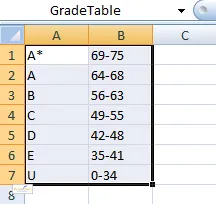
The first thing we need to do is create the lookup table.  The diagram below shows what it will look like (the information is based on data taken from the AQA GCE Mathematics Unit D02 paper).

Creating a lookup table

Our table consists of two columns, the first contains the values we are going to be looking up, and the second contains the answers we want to get. The order of the rows in this table doesn't matter as we'll be looking for an exact match.  We've also given our table a range name to make our formula easier to create.


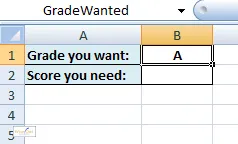
In another part of the spreadsheet we can create our lookup system, as shown below:

Setting up the lookup system

We've created a cell for a user to type in the grade they want to get and given this a range name. The next job is to create the function to return the right answer.


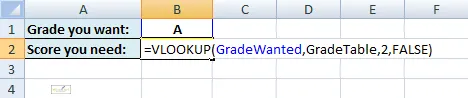
The last step is to create the formula that will return the score needed to achieve the grade we're looking for.  To do this, we'll enter the formula shown below into cell B2:

The VLOOKUP function

This formula says to look for the grade we're looking for (GradeWanted) in the table of grades (GradeTable), give us the answer from the second column of that table (2), and make sure you're looking for an exact match (FALSE).

We should now be able to type any grade into cell B1 and see the required scores appear in cell B2.

The finished formula

The finished lookup system.

Using VLOOKUP to Categorise Values

The alternative way to use our VLOOKUP function would be to enter a numerical score and ask Excel to tell us what grade we'll get.  This is slightly more difficult than the previous example because multiple scores can return the same grade and we definitely don't want to have to create a huge lookup table to handle all the possibilities.  Instead, we'll tell our VLOOKUP function to behave differently when looking for answers.

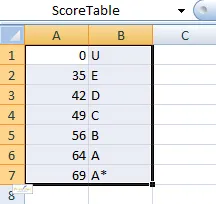
To begin with we need to create the lookup table.  We have to be a little more careful when doing this for a lookup that doesn't look for an exact match.  The main things that we need to do are:

  • Start the first row of the table with the lowest value we might ever want to look up.  Theoretically, the lowest exam score we could get would be 0, so that's what we'll start with.
  • Work in ascending order up the list of scores.
  • Don't enter every possible score on a separate row, just the scores at which the grade will change.

Following these rules, our table should look like this:

A threshold match lookup table.

This type of table allows us to search for any score from as low as 0 and for Excel to find a match for us.


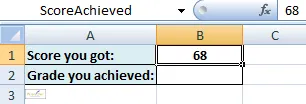
We can now create a similar lookup system to earlier, except this time we'll be typing in a score and getting Excel to tell us what grade we've achieved.

The basic lookup system

The final step is to create the VLOOKUP function return the right answer.


The key to creating this type of VLOOOKUP is in the optional fourth argument.  In the previous example we used FALSE to tell Excel that we were not looking for an approximate match.  In this example we need to do the opposite - we can either use the value TRUE, or miss out this argument altogether as shown below.

An approximate match lookup function

Here we've omitted the fourth argument altogether, although we could have used the value TRUE instead.

The function will now tell us what grade we achieved based on our score.

The finished lookup

The finished VLOOKUP function.

Comments on this blog

This blog has 4 comments:

Comment added by Excel Formulas Guy on 25 August 2011 at 13:55 GMT
vlookup really is a useful function. most used among the lookup type
 
Comment added by smhn on 29 August 2011 at 05:52 GMT
thanks for your help on YahooAnswers...

I asked you about passing values from forms to query and back yesterday... your answer was very enlightening.. though at the end I have a little problem: after I do everything, after I hit the button to search for a certain value, it doesnt come up with any answer while I'm sure there're a few... where am I wrong?
(could it be that I'm searching for a text string but the text box is set for numbers or something in that line?)
 
Comment added by smhn on 29 August 2011 at 11:14 GMT
belay my last message... I just found out my problem .. I changed the criteria to:

Like "*" & [Forms]![frmCriteria]![txtCriteria] & "*"

and it worked!!!!


again, thanks a lot ... you certainly helped me...
 
Comment added by DaithiCuc on 05 June 2012 at 12:58 GMT

Hi this is exactly what I need to do, but am unsure how to apply it within an existing spreadsheet of exam scores.

Basically I have a list of 200 plus numeric scores, but need apply an alpha grade to each. How do I do this in and existing sheet? 

Any help would be appreciated.

Thank you.

Reply from Andrew Gould (blog author)

Hi,

The process will be very similar to the one described under the heading "Using VLOOKUP to Categorise Values".  The only difference is that you'll need to copy your formula down a column of 200 or more rows!  To begin with, find a blank part of your spreadsheet and create the lookup table as described in the blog above.  Remember to start with the lowest score and grade on the first row of your table, working your way towards the higher grades.

When you've done that it will help if you create a range name for the table, call it something like ScoreTable.  If you're not sure how to do this you can read this article.

Now that you've created your lookup table head back to your list of scores.  If we assume your list of scores starts in cell A1 you could select cell B1 and enter this formula:

=VLOOKUP(A1,ScoreTable,2)

Once you've done this all you need to do is copy the formula down the column of scores and you should find that it calculates the grade for each score.

Hope that helps.

All content copyright Wise Owl Business Solutions Ltd 2013. All rights reserved.